By Charles Ian Pritchard on February 17, 2023
Last updated on March 31, 2026
The Azure Virtual Desktop Web Client provides a powerful way for users to access applications and desktops remotely. This interface gives users a first look at an improved experience and simplified workflow. It is a critical component for remote work, delivering an intuitive way to manage resources and increase flexibility.
What Features Does the Azure Virtual Desktop Web Client Offer?
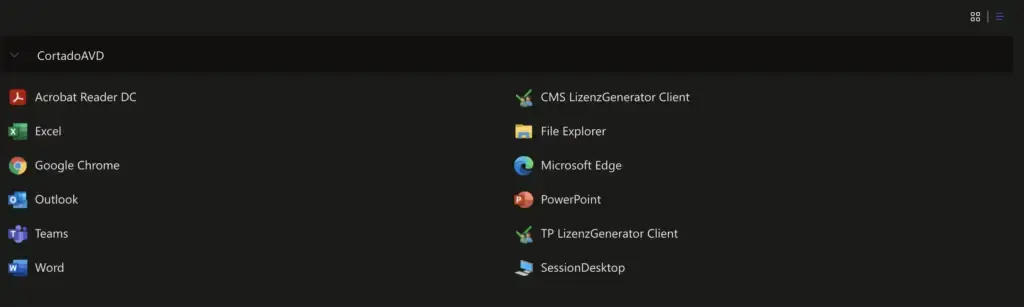
The Azure Virtual Desktop user interface presents a clean, modern look. It allows switching between dark and light modes, displays resources in grid or list formats, and lets you reset web client settings to their default values.
How to Switch to the New Azure Virtual Desktop Web Client Interface

To use the Azure Virtual Desktop Web Client, you must first activate the switch within the Web Client. By default, this option is off, giving you control over whether to use the new interface.
Simply click the "Test the new client" button on the right side of the screen to activate it. The new interface will then load.
What About Printing in Azure Virtual Desktop?
With the ezeep Print App set up on Azure Virtual Desktop and paired with the ezeep Connector App, users can print through a web browser or the Remote Desktop App. Custom rules allow users to see printers that match their Azure Virtual Desktop session. The ezeep cloud compresses print jobs and securely transfers them to the connector. This links cloud-based print tasks to physical printers, allowing printing to any device, from anywhere.
For security, ezeep includes strong multi-factor authentication and zero-trust printing, which is especially useful in highly partitioned networks through the ezeep Hub.
ezeep's cloud printing can also integrate with pull printing. This means a print job only executes after local user authentication, like scanning a QR code. This creates a secure print workflow and ensures only authenticated users collect documents. These features establish ezeep as a top choice for secure printing.
The Printer Profiles feature completes the offering, providing default printer settings in the virtual desktop session for users. This offers access to a broad range of printer settings, unlike Microsoft's default printer redirection. Additionally, comprehensive monitoring and reporting features are helpful for admins, and numerous third-party integrations, like Zapier and Make, ensure that ezeep adapts to any use-case scenario.
Conclusion
The Azure Virtual Desktop Web Client UI is a significant step for remote work and a sign of continuous improvement for Azure Virtual Desktop. It provides an enhanced user experience and easier resource management. Combined with ezeep, it extends the classic Azure Virtual Desktop offering, making print workflows simple and secure.
Azure Virtual Desktop Review: User Experience & Management
Azure Virtual Desktop: New Name, New Features