By Charles Ian Pritchard on January 13, 2023
Last updated on March 31, 2026
Printing from Chromebooks can present challenges, especially when connecting printers or troubleshooting issues. This guide will help you understand how to connect printers to Chromebooks and why a cloud printing service simplifies management for both home users and businesses.
One common problem with printing in Chrome OS and Chromebooks is difficulty finding or setting up the right printer. Users might not see the printer in the list of available devices or encounter errors during pairing.
For administrators, the process involves additional hurdles related to managing users, deploying, and maintaining print infrastructure, making printer connection to Chromebooks even harder.
This post shares tips to improve printing and print management for Chromebook users. These tips are also relevant for non-business users who want to connect a printer to their Chromebook.
How Is Printer Management via the Google Admin Console Handled?
Adding printers to an organization as an administrator through the Google Admin Console is more involved than for individual users. First, devices must be properly configured and connected to the network. Then, an organizational area needs to be created in the Admin Console, and printers added by entering their IP addresses. Finally, permissions must be granted to users who will access these printers.
Another challenge with this method is setting a default printer, ensuring all users print to the correct device automatically. While configurable through Organizational Areas, it can be difficult to guarantee consistent default printer selection for all users.
What Printers Work with a Chromebook?
To determine printer compatibility with a Chromebook, check device specifications or look for models designed for mobile devices. Many mobile printers are compatible with Chromebooks, making them useful for printing on the go. You can find a list of compatible printers at Google's support page.
Chromebook Cloud Printing with ezeep
If you are an administrator assigning printers to users and aiming to minimize workload, a dedicated cloud printing service like ezeep can be very useful.
ezeep simplifies printer management for organizations using Chromebooks, allowing users to access and print to devices from anywhere. ezeep also offers features for printer management and distribution, such as the ability to share or restrict printers for specific users or groups.
Connecting printers to ezeep does not require manual steps like integrating Google Sheets and can be automated with the ezeep Hub. Users can also select their preferred printers in their own user portal, reducing the time IT spends on printer assignments.
The Printer Profiles feature further simplifies printing processes. It allows setting customizable printing preferences for different users on the same printer, such as resource-saving defaults like black-and-white or duplex printing.
ezeep Printer Profiles minimize errors and improve productivity. For instance, you can ensure correct page sizes are always selected or print additional copies for other departments. You can visually set your printing preferences and assign them to user groups in one window.
As an Admin, How Can You Enable Users to Print from Chrome or Chromebooks with ezeep?
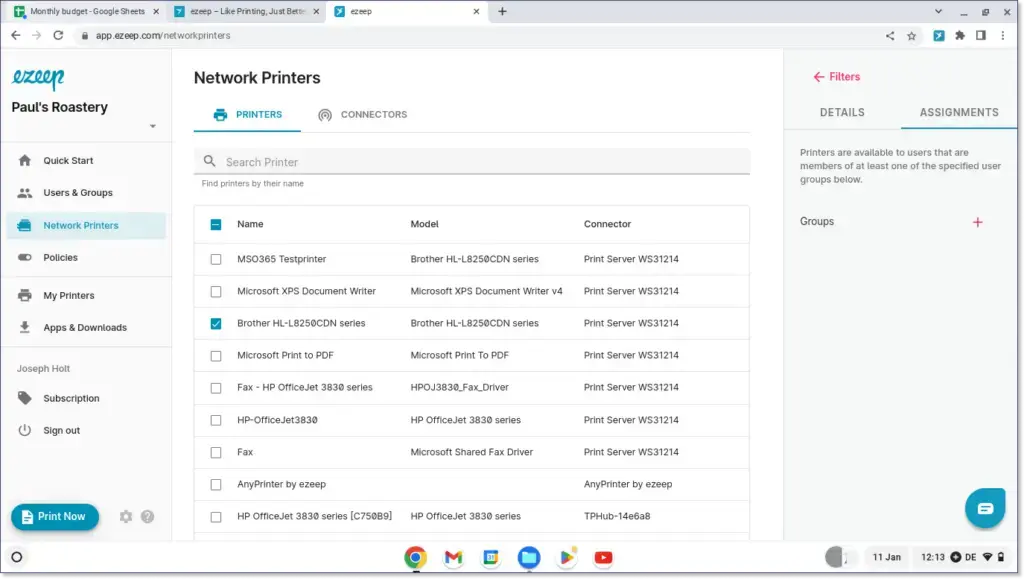
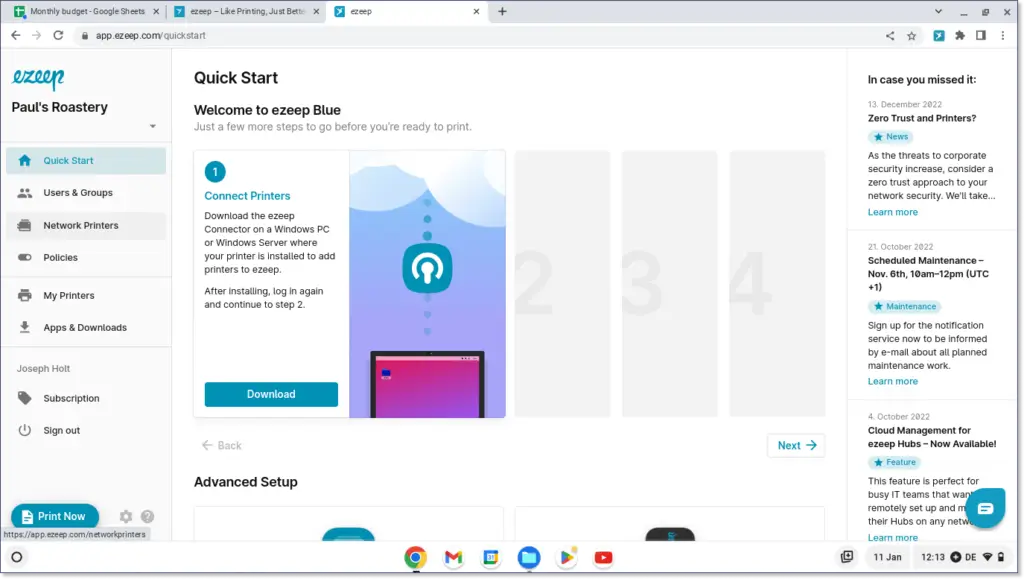
- Connect the printers with ezeep: The easiest way for an admin to do this is using the ezeep Hub. The Hub saves IT administrators time and replaces expensive, high-maintenance print servers. ezeep handles print job rendering (translating the document into the printer's language) entirely in the cloud, removing the need for local printer drivers or print servers. Alternatively, the free ezeep Connector software can be installed on a Windows PC or server to connect printers with ezeep.
- Invite users by email in the ezeep Admin portal and assign their standard printers.
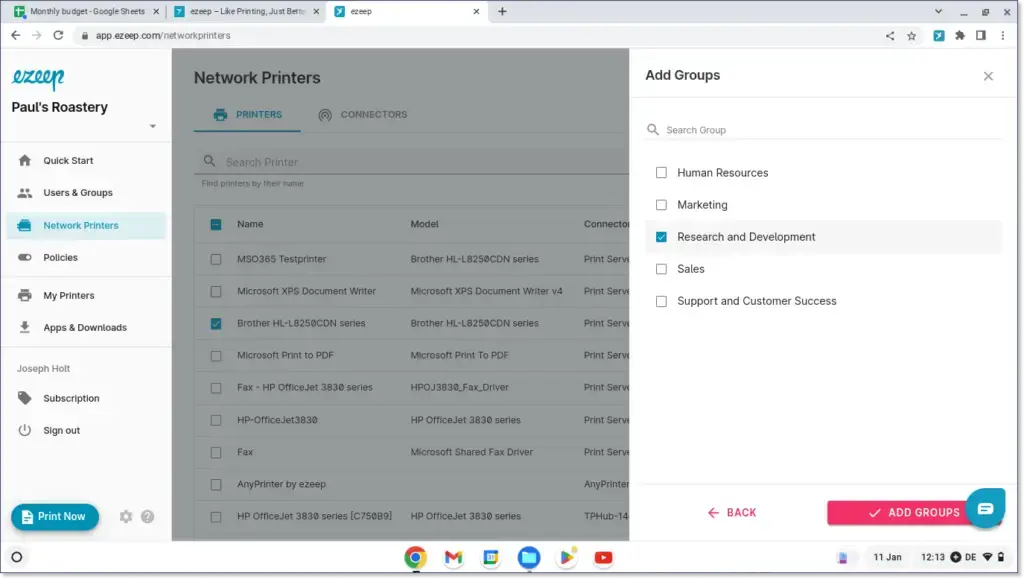
- Distribute the ezeep extension for users via Google Workspace or allow them to download it themselves.
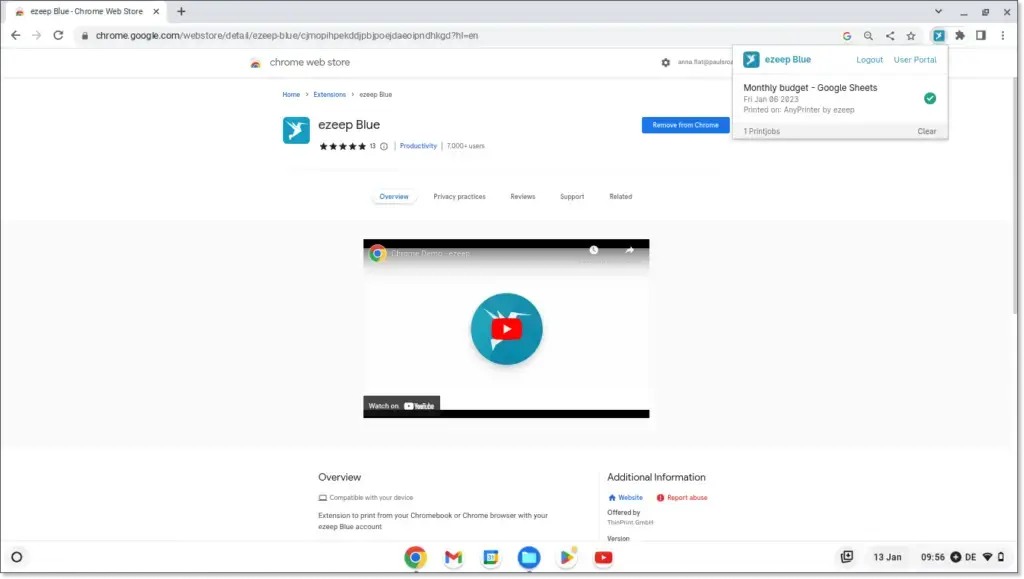
- With ezeep, printing directly from ChromeOS is now possible.
- The user can change their desired printers in "My Printers" at any time. If printer selection is not allowed, the admin assigns a printer to the user and disables printer selection in the policies within the Admin portal.
ezeep Offers Easy Chromebook Cloud Printing
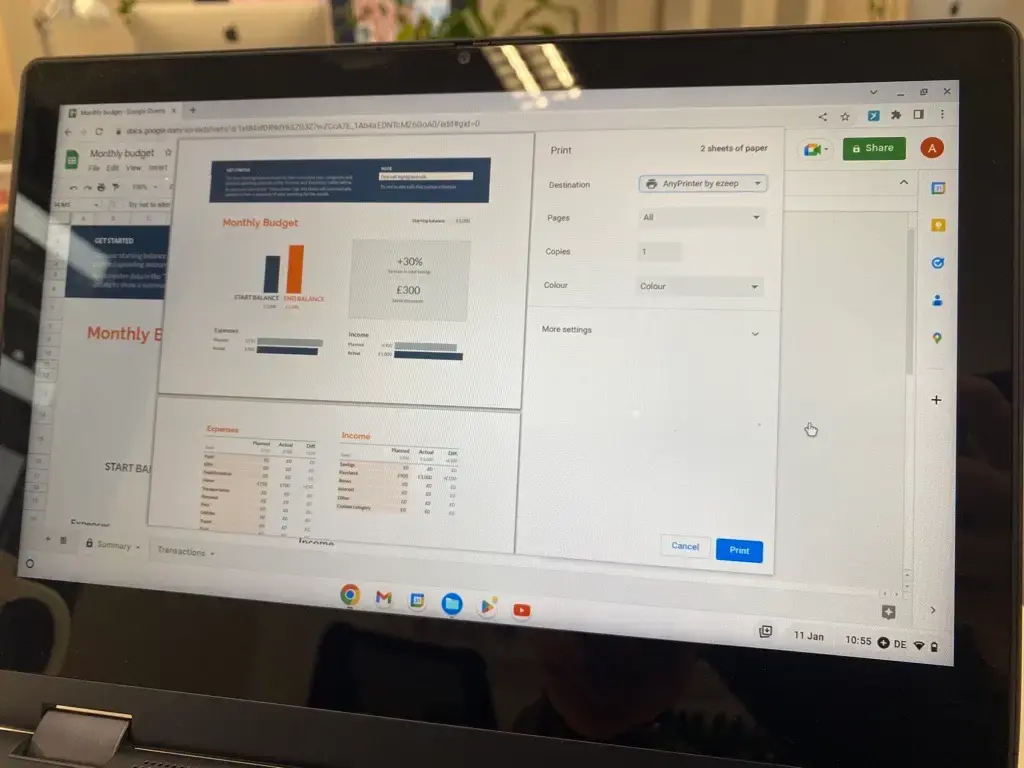
ezeep lets users print from any device with a Chrome browser window. This is especially helpful for users working from different locations or those needing a mobile printing solution. Furthermore, ezeep enables direct printing from Google Docs, Sheets, websites, and other Google applications without needing additional drivers or software. Cloud rendering processes print jobs quickly and reliably without affecting local device performance. ezeep also uses secure connections and protocols to protect data during printing. Using ezeep is straightforward, allowing users to print quickly and easily.
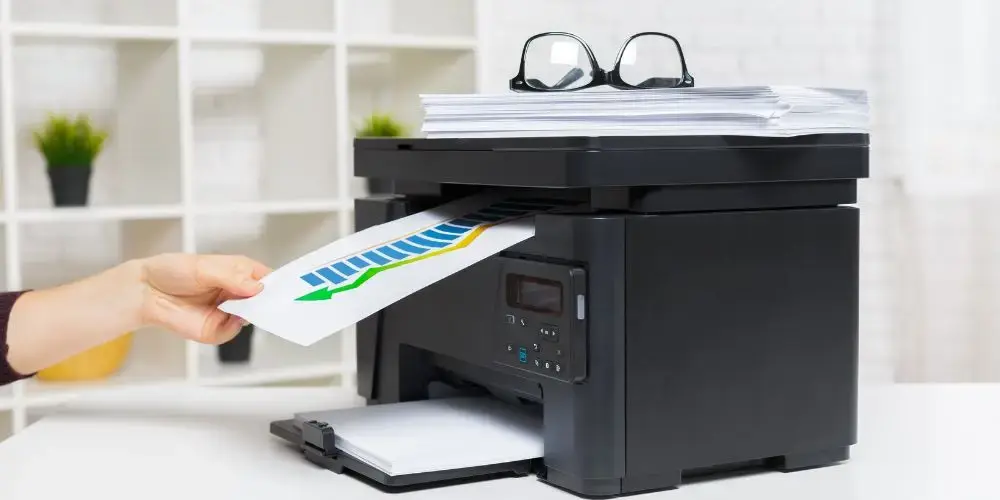
Chromebook Cloud Printing has never been easier
ezeep is free for up to 10 users.

Chrome Remote Desktop: Print to Your Local Printer

Printer Sharing: Cloud Printing Saves You Time