Printer Profiles: Set the Defaults Once. Skip the Support Tickets.
Different teams need different print settings on the same printer. Printer Profiles let admins define defaults and assign them by user or group, all from the cloud. No GPOs. No scripts. No walking to each device.
Why Print Settings Are One of the Biggest Sources of Wasted Pages
Users Print Wrong and Reprint
When the default is single-sided color but the user needed duplex mono, the job prints wrong and gets sent again. Every misprint wastes paper, toner, and time. Multiply that across an organization and it's a measurable cost.
IT Fields Tickets for Settings Changes
Without per-group defaults, users can't figure out how to switch trays, enable duplex, or change paper size. Each question becomes a help desk ticket that takes longer to resolve than the print job itself.
GPO-Based Print Defaults Don't Work Across Platforms
Group Policy only applies to domain-joined Windows devices and depends on print servers. Mac, Chromebook, iOS, and Android users get no managed defaults at all. Remote and hybrid workers are on their own.
One Profile Per Printer, Per Group. All From the Cloud.
Color Output
Default to black and white for cost-conscious groups, or allow color for teams that need it. Reduces unnecessary color printing across the organization without restricting it entirely.
Duplex
Set double-sided printing as the default to cut paper usage in half. Especially effective for high-volume groups like finance or legal where most jobs don't need to be single-sided.
Paper Size
Define letter, A4, legal, or label sizes as the default for specific teams. Prevents the "why did my invoice print on legal size?" moments that happen when someone before them changed the tray.
Tray Selection
Route jobs to the correct tray by default: recycled paper in Tray 2 for general printing, letterhead in Tray 3 for executive correspondence, or labels in Tray 1 for shipping.
Orientation
Set landscape or portrait as the default for groups that consistently need one over the other. Useful for teams printing wide-format reports, spreadsheets, or architectural drawings.
Resolution
Adjust print quality defaults per group. Standard resolution for everyday documents, high resolution for the design team's proofs or client-facing materials that need sharper output.
Set Up in Minutes. No Scripting. No GPOs.
Create a Profile
In the ezeep admin portal, go to Printers, then Printer Profiles. Click Add Profile. Name it, select the target printer, and configure the default settings.
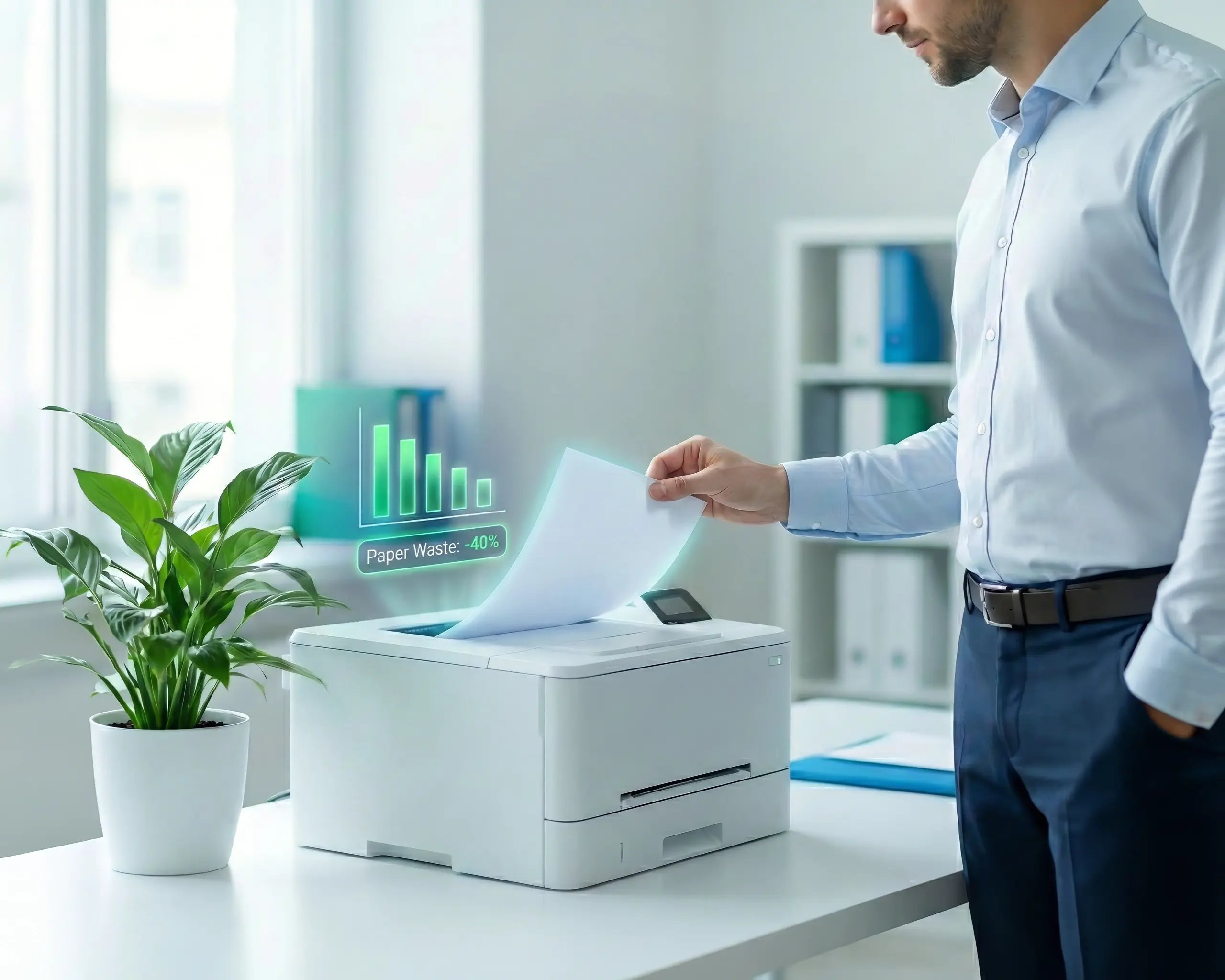
Users Print with the Right Defaults
When users print to that device, the profile's settings are applied as their defaults. They can still adjust settings in the print dialog if needed, but the starting point is always correct.
Assign Printers and Print
Printers assigned to the account in the ezeep admin portal appear automatically. Any application on the machine that can send jobs to a Windows printer can now print through ezeep, whether it's an ERP system, WMS, kiosk application, or a scheduled task. Jobs are rendered in the cloud and delivered to the printer. No user session required.
How Organizations Use Printer Profiles
Cost Reduction Across the Fleet
Label and Receipt Printing
Shared MFPs in Multi-Department Offices
Coworking Spaces and Education
Frequently Asked Questions
Curious about how it all works? Here's everything you wanted to know about ezeep's cloud printing solution!
What are Printer Profiles in ezeep?
Printer Profiles are cloud-managed default print settings that admins assign to specific printers per user or group. Each profile controls defaults for color output, duplex, paper size, tray selection, orientation, and resolution. When a user prints, the profile's settings appear as the starting point in the print dialog. Users can still override settings on individual jobs. Profiles guide behavior without locking it down.
Can different groups have different default settings for the same printer?
Yes. Admins can create multiple profiles for the same physical printer and assign each to a different group. For example, the accounting team can default to mono and duplex while the design team defaults to color and single-sided, all on the same device. Each group sees their own defaults when they open the print dialog.
How are Printer Profiles different from setting defaults through Group Policy?
Group Policy requires Active Directory, a print server, and domain-joined Windows devices. Changes depend on GPO refresh cycles and only apply to Windows. ezeep Printer Profiles are managed from a cloud portal, apply immediately, and work across Windows, macOS, ChromeOS, iOS, and Android. No domain membership, no print server, no gpupdate /force.
Do Printer Profiles restrict users from changing settings on individual jobs?
No. Profiles set defaults, not restrictions. Users can still adjust color, duplex, tray, and other options in the print dialog when they need to. The profile ensures the starting point is always right so users don't have to change settings for routine jobs.
Which ezeep plans include Printer Profiles?
Printer Profiles are available on all ezeep plans, including the Free plan. Profiles are applied at the cloud level during rendering, so they work across every operating system ezeep supports.
Set the Defaults Once. Let Everyone Print Right.
No scripts. No GPOs. No per-device configuration. Printer Profiles give every user the right starting point for every print job, managed from the cloud.