By Charles Ian Pritchard on October 8, 2024
Last updated on March 31, 2026

If you use Azure Virtual Desktop (AVD) or Windows 365 Cloud PC, printing can be a challenge. Default AVD printer redirection often causes headaches, leaving users frustrated. This post explores common issues with AVD printer redirection and provides solutions to ensure reliable printing in your virtual environment.
What is AVD Printer Redirection?
AVD printer redirection is a default method for enabling printing in Azure Virtual Desktop. It uses the Microsoft RDP Client or Remote Desktop App to connect all printers installed on the local host (desktop, notebook, etc.) to the AVD environment. This includes both physical and non-physical printers like PDF or OneNote tools.
Top Three Problems with AVD Printer Redirection
While group policies offer some configuration options, user-specific setups are often difficult. AVD printer redirection can lead to several problems, impacting user experience and productivity.
1. Unreadable printouts and font issues
Printer redirection relies on a functional printer with the correct driver on the host device. The Microsoft Easy Print driver handles rendering within the virtual desktop. However, the actual processing of print jobs into the printer’s language occurs on the host, which can lead to misinterpretations or discarded jobs. Common issues include font problems, where fonts are replaced or text becomes unreadable. Embedding fonts or using an alternative host driver can sometimes resolve these issues.
2. No printer mapping due to misconfigurations
Incorrect settings in the RDP protocol redirection or local host issues can prevent printers from redirecting. This means no printers are available on the virtual desktop, making printing impossible. Always check RDP client settings, especially for printer redirection, and verify any activated group policies that might influence it.
3. Changing printer names
AVD printer redirection appends a session ID to printer names on the virtual desktop to ensure uniqueness in multi-session environments. The downside is that this ID, and thus the printer name, changes with each login.
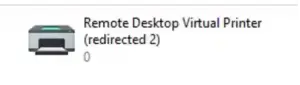
This dynamic naming isn't usually a problem for common applications like MS Office, where users manually select their printer. However, it creates issues for applications that rely on predefined printers, such as ERP/CRM systems, which may require manual setting adjustments with every new session.
An Alternative: ezeep
Instead of relying on basic AVD printer redirection, consider an alternative for managing printing in your organization. ezeep offers a dependable way to handle printer mapping efficiently. As a launch vendor for Azure Virtual Desktop (formerly Windows Virtual Desktop), ezeep builds on 25 years of print management expertise from ThinPrint.
In a short video, Dennis Kapfenberger, Technical Consultant at ezeep, shows how easy it is to sync Entra ID users and assign them printers reliably. He also compares this method to AVD's standard printer redirection, highlighting how ezeep ensures users consistently access all printer features, regardless of the device.
Key Print Mapping Improvements with ezeep
1. Easily Sync Entra ID Users
Users are automatically imported into ezeep when they first log into their workspace. This allows you to use Entra ID group profiles to assign printers or configure specific printer assignments simply.
2. Use Special Functions of Network and Local Printers
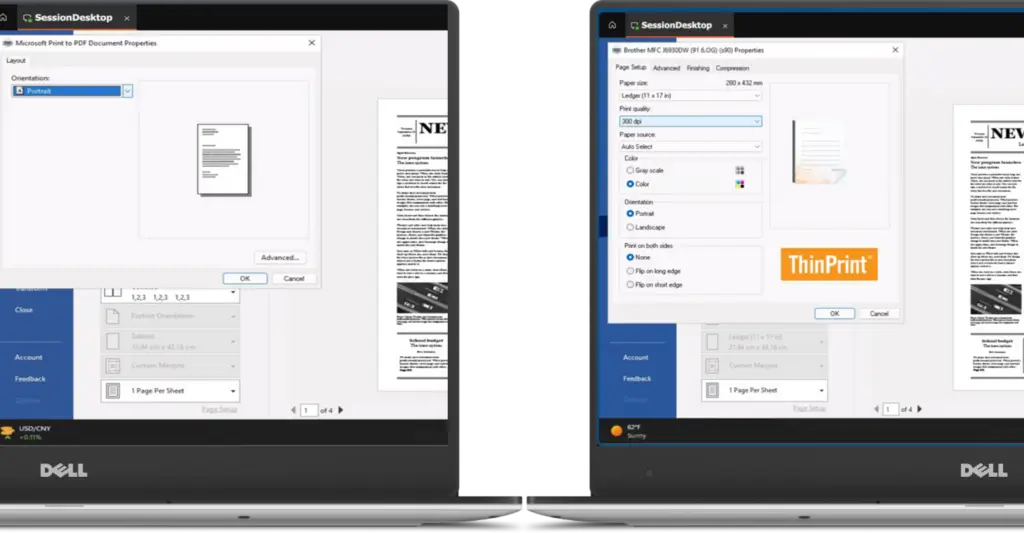
AVD's default printer redirection limits users to basic options like orientation, paper format, and copy count. With ezeep, you can access all printer features, ensuring users get the full functionality of their network and local printers.
3. AnyPrinter – The Flexible and Secure Universal Print Queue
AnyPrinter allows users to send print jobs and then release them from any chosen printer by authenticating at the device. This removes the need for admins to know exact user locations or nearby printers, providing greater flexibility and protection.
4. Support MacBooks, iOS, and Android from Any AVD Client
Whether connecting via the Remote Desktop App or an HTML5 web client, ezeep ensures printers are always available. This removes the need to download PDFs, open them locally, and then print, making the process smoother for users on various devices.
Replace AVD Printer Redirection with ezeep Now
Beyond these benefits, ezeep offers features like serverless printing, driverless printing, and zero trust printing. While proper AVD print configuration is important for a smooth experience, you can eliminate frustrations entirely. With ezeep, you get reliable, consistent printing for all your users.

Print From Remote Desktop to Local Printer
Managing Printers in Azure Virtual Desktop