By Charles Ian Pritchard on February 1, 2023
Last updated on March 31, 2026
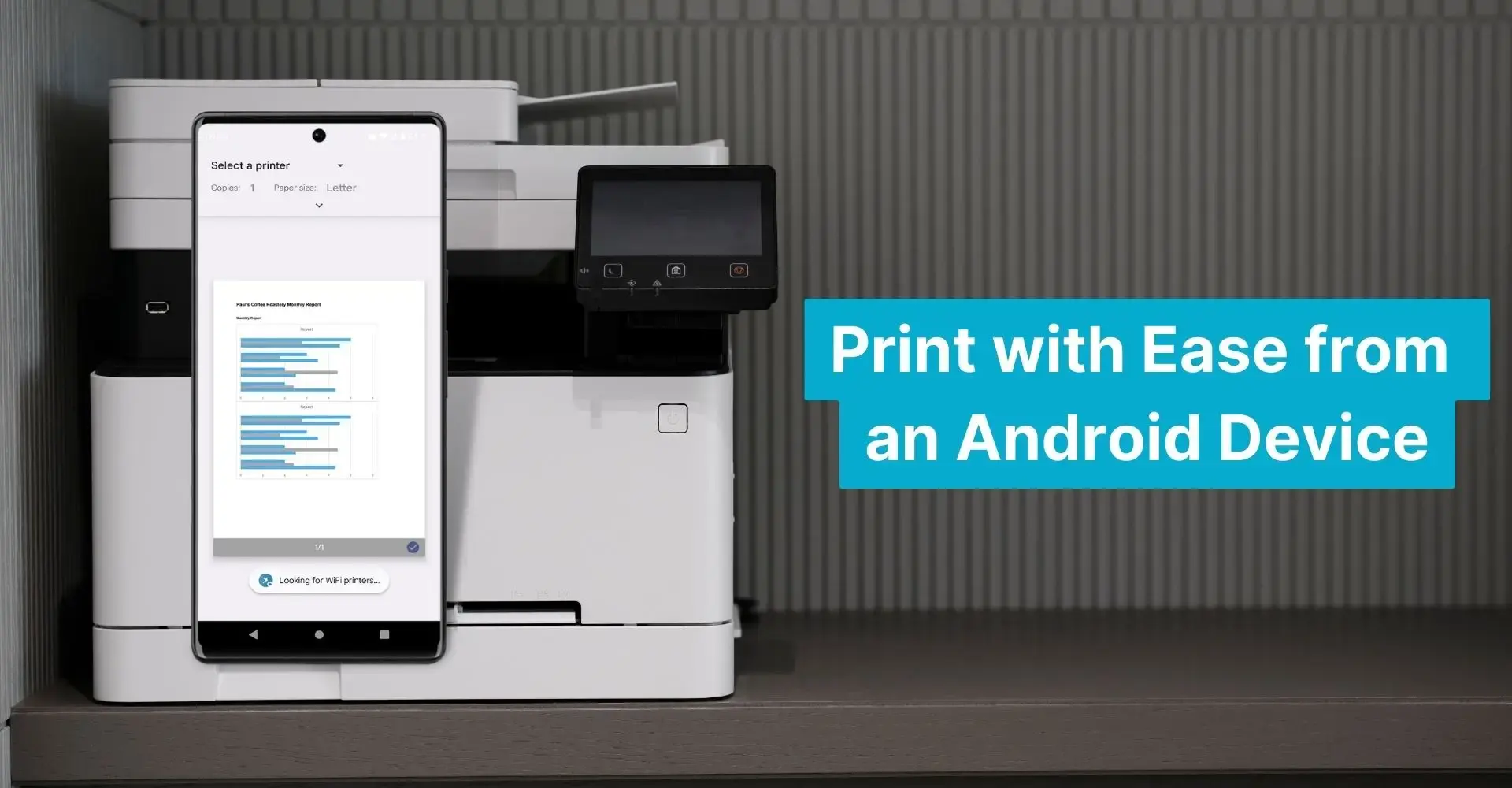
Printing from an Android phone or tablet is useful for both personal and professional tasks. Whether you need a hard copy of a crucial file or an essential document for work, this guide shows you how to connect your device to a printer and print your documents. You'll learn the general process for printing and how to use a specialized print service like ezeep to simplify the experience.
How Printing from Android Devices Works
When an Android device prints, it usually needs to be on the same network as the printer, or the printer must support the communication protocol (like Bluetooth or NFC). Some printers offer native Android printing support. Others require a specific print driver or app. While there isn't a direct equivalent to Apple's AirPrint, many printer manufacturers offer their own Android Print Providers. This works well for a single printer brand, but can become complex in business settings with printers from various manufacturers.
Android Print Service Providers
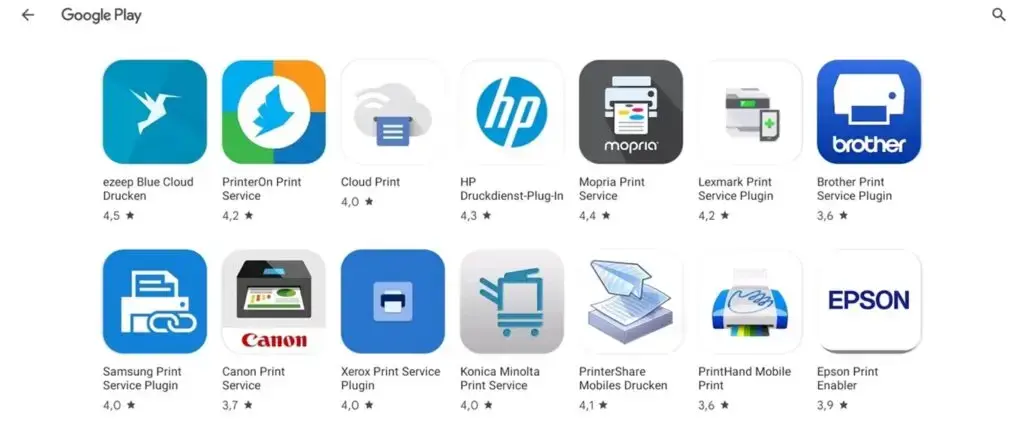
Android Print Providers are key to the Android ecosystem. These providers allow printing to various types of printers, including Wi-Fi, cloud-based, and Bluetooth printers. They act as a bridge between your Android device and the printer, translating print jobs into a format the printer understands.
Advantages of Using a Print Service like ezeep on Android
A print service like ezeep offers significant advantages for both individual and business users.
One primary benefit of using ezeep is easy mobile printing to any printer, regardless of its brand. ezeep provides direct printing to Wi-Fi printers without needing complex setup, making it a fast method. The ezeep app lets users print to all printers on the same Wi-Fi network, whether in the office, at a partner's location, or at home.
Additionally, ezeep provides print security and reliability, especially important for companies. Pull printing allows secure and efficient printing with authentication at the device. All print jobs are encrypted and streamed to the printer. This ensures maximum printing reliability and security for mobile devices. It helps protect confidential information by only allowing authorized printers and users to access sensitive documents.
Furthermore, ezeep allows direct printing from native apps. The ezeep app is an official Android Print Provider, making it simple for users to print from popular apps like Google Docs and Microsoft Office. With ezeep, you get a consistent printing experience, free from compatibility issues.
With ezeep's Printer Profiles feature, you can simplify entire printing processes by setting default printer settings for user groups. These default settings help minimize errors, increase productivity, and reduce printing costs with resource-saving options like black/white or duplex printing.
How to Print from Your Android Device to Wi-Fi Printers
How to Link a Wireless Printer with a Smartphone or Tablet
- Open your phone's Settings app.
- Tap “Connected devices” then “Connection preferences” then “Printing”.
- Tap “Add service”.
- Enter the printer information.
How to Print Documents From an Android Device
How to print varies by app, but here is the typical process:
- Make sure the printer is on and connected to the same Wi-Fi network as your Android device.
- On your Android device, open the document or image you want to print.
- Often, you can tap Menu (three horizontal lines) or More (three vertical dots).
- Tap “Print.”
- Select the printer from the list.
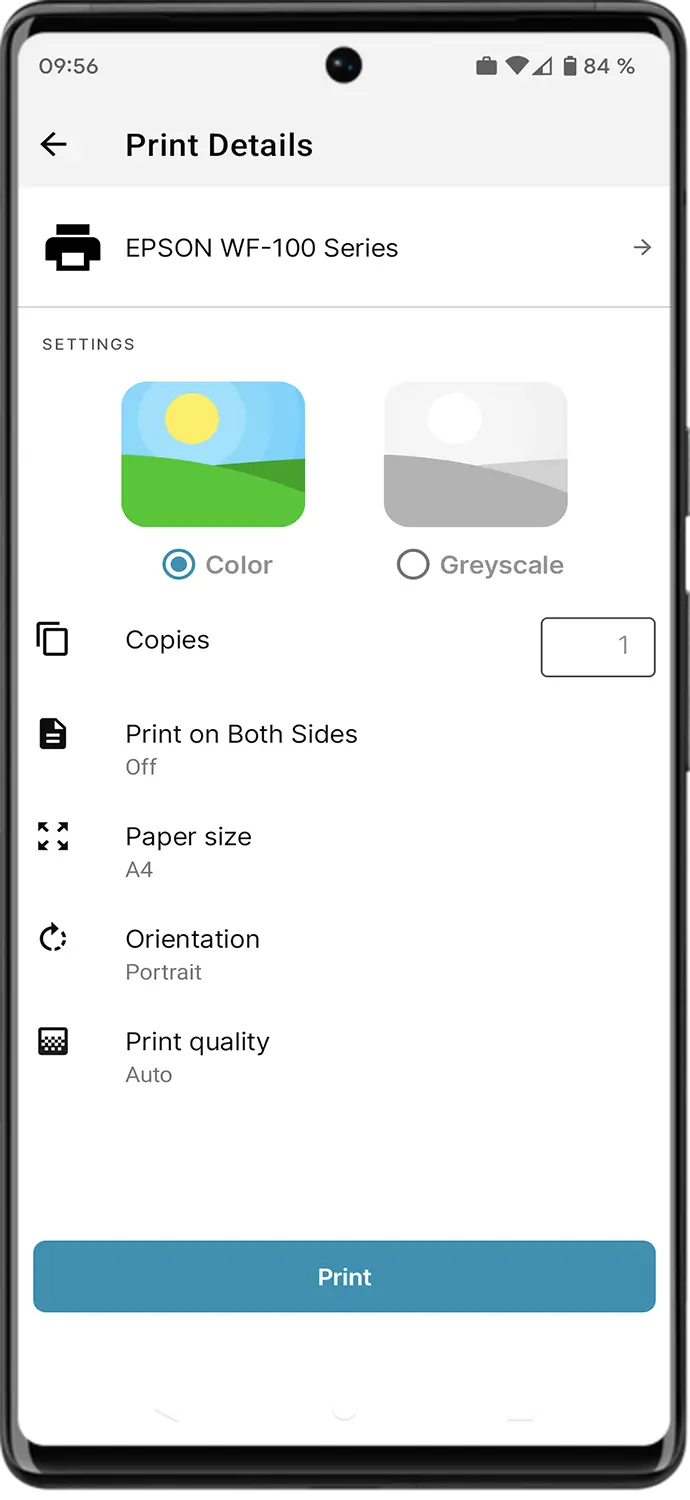
- Adjust settings like copies, then tap “Print.”
How to connect a printer with ezeep and print documents from a smartphone or tablet:
- Install the ezeep app on your Android device and sign up or sign in. If it's your first time, you'll need to create an ezeep Organization. This allows you to connect multiple printers to your ezeep account and assign them to other users.
- Tap the “Print” button in the bottom right corner of the app.
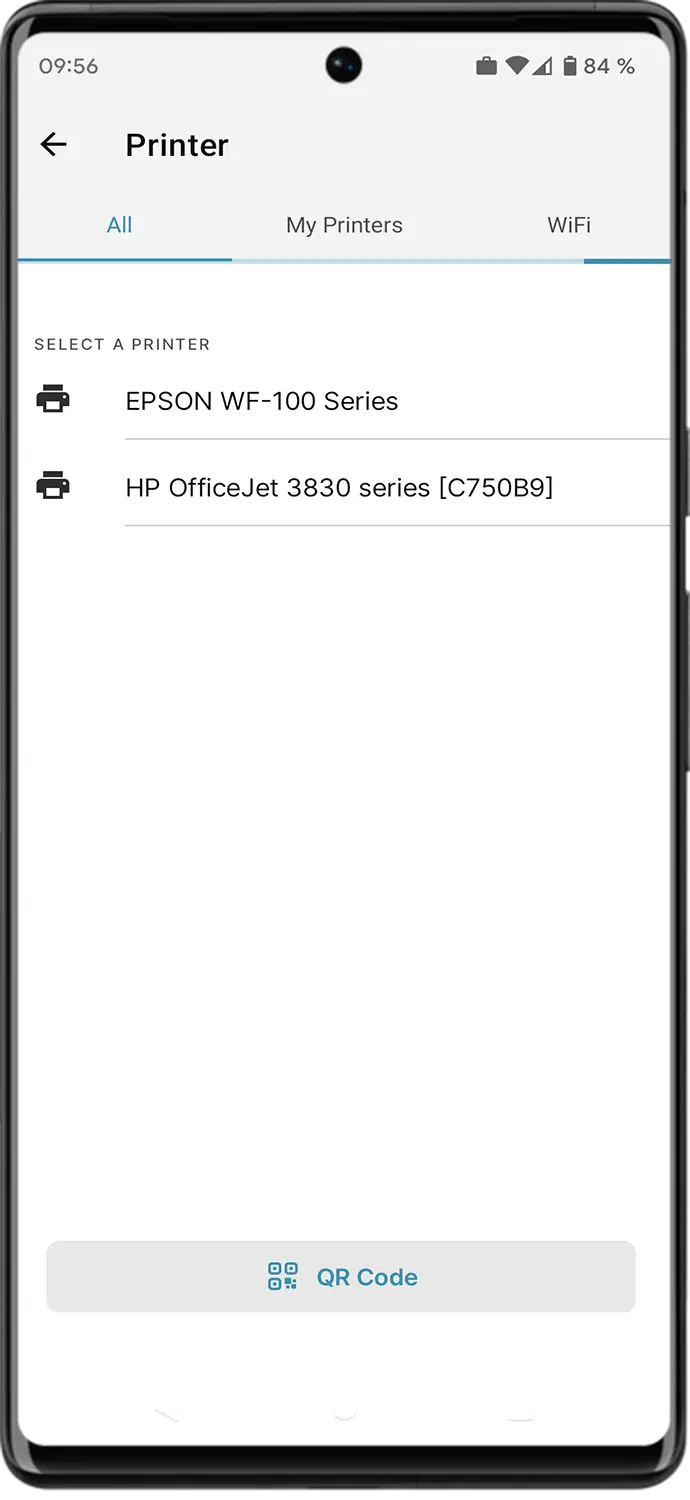
- Follow the on-screen instructions to select your printer from All, My Printers or Wi-Fi. When using a printer for the first time over Wi-Fi, you will need to select the printer model. If it's not listed, try a similar model, as it often still works. Specific printer models can also be requested directly in the app.
How to print directly from an Android application using the ezeep app:
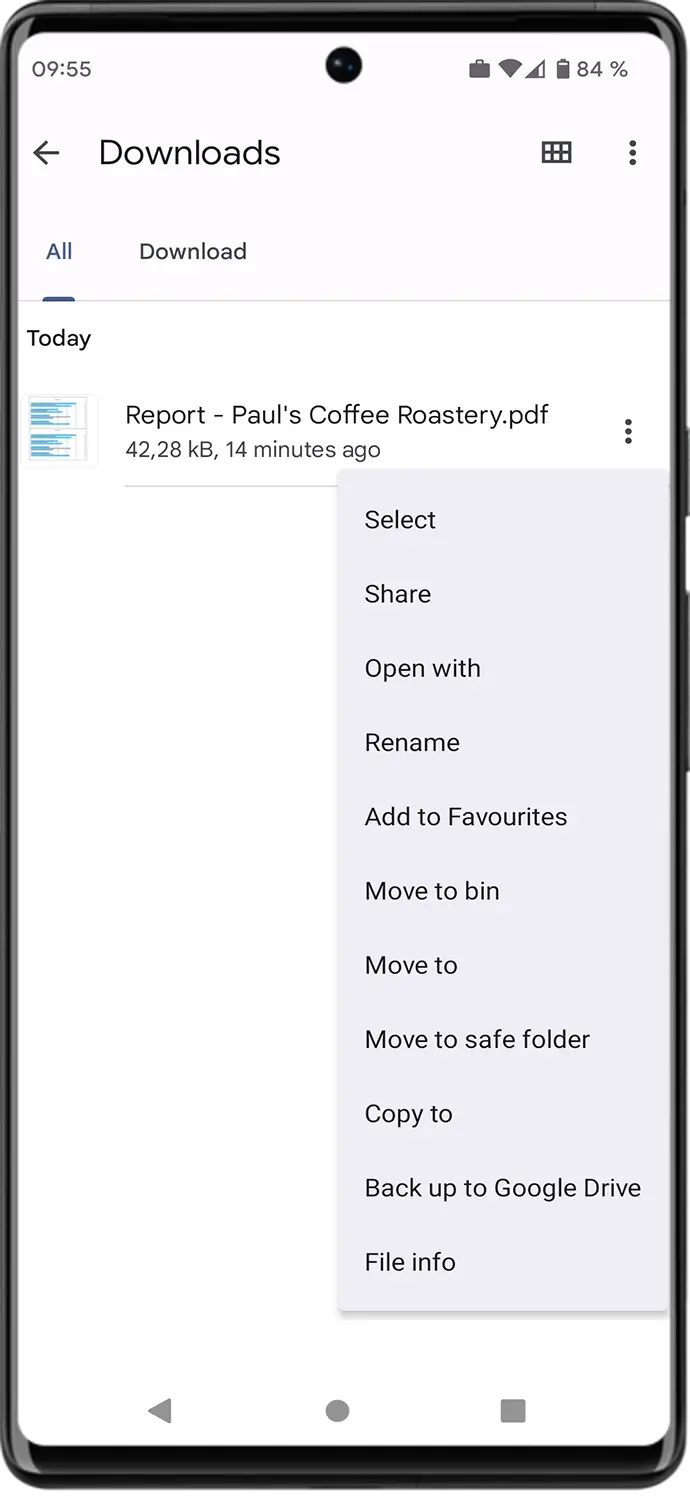
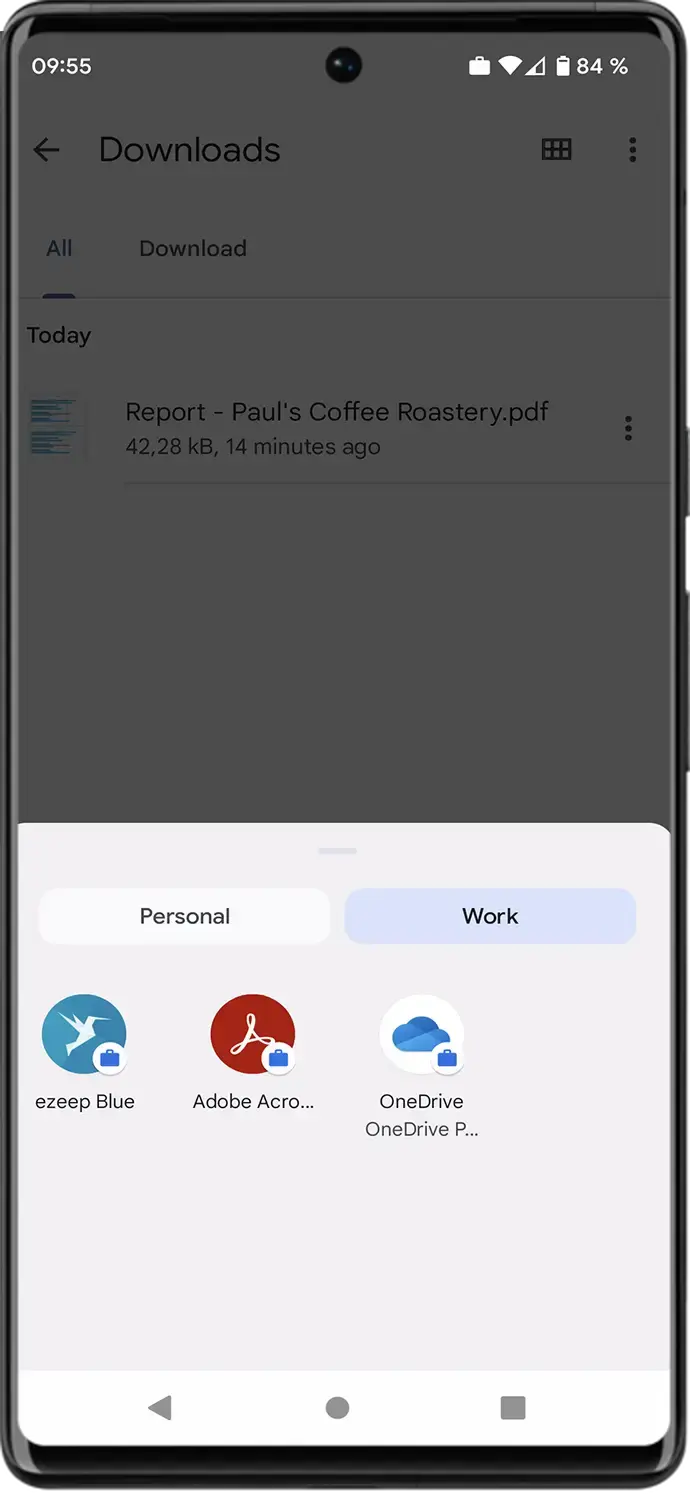
- Find the document you wish to print from your smartphone or tablet.
- Tap on the three vertical dots on your screen.
- Scroll down the menu and tap “Share” or “Open With”. Alternatively, you can also select “Print”.
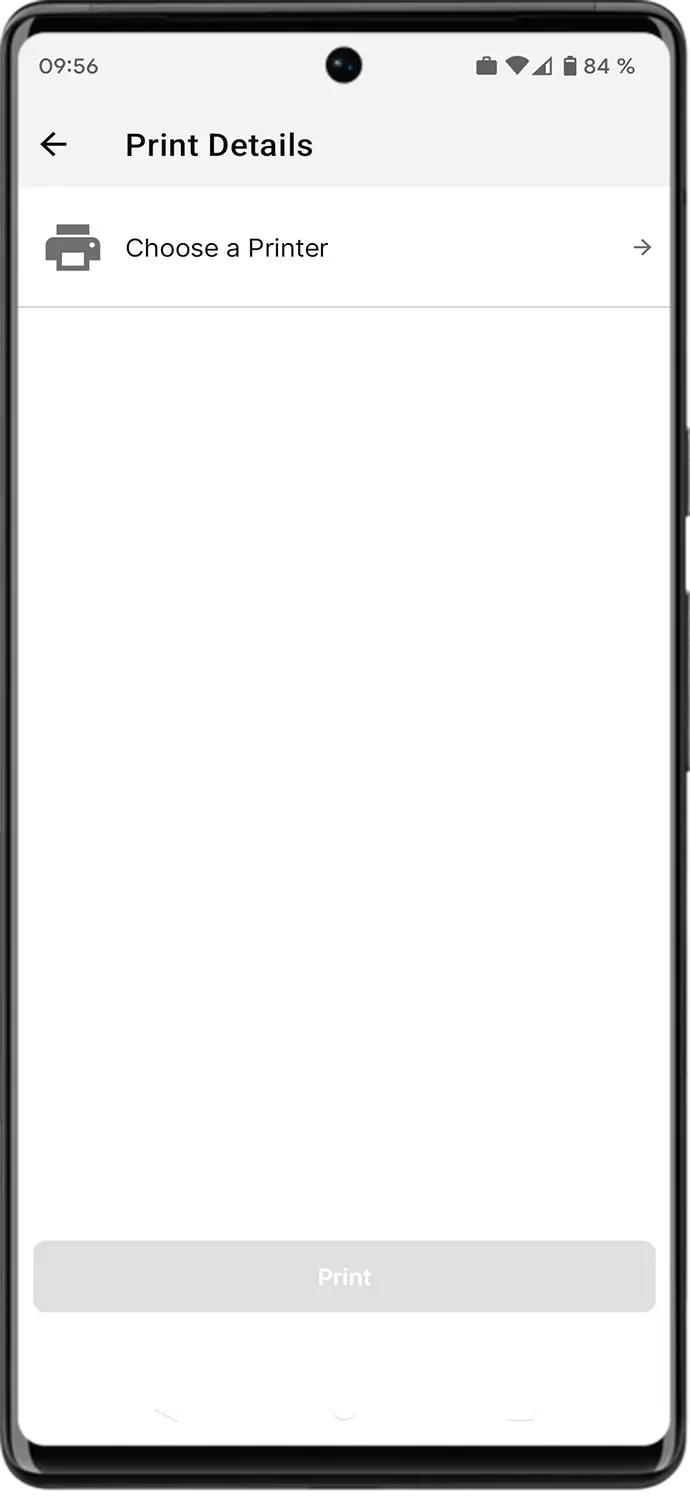
- Select the ezeep app and follow the workflow. If you opened the document with the “Print” feature, tap on “Select a printer” and choose a device with the ezeep logo next to it.
- Check the preview and tap Print.
Greater Print Control with ezeep's Advanced Print Management (MDM Support)
With ezeep, business users gain advanced print management capabilities through Mobile Device Management (MDM) systems. This provides organizations with more control over their print environment. They can pre-define many settings for each user. This makes it simpler for users to use the ezeep app and helps businesses restrict access to certain features or define default settings for specific user groups. Admins can enable or disable color printing, force duplex printing, prevent direct printing from apps, allow Wi-Fi printing, or prevent print jobs from being deleted. These options give businesses extra print security and help ensure sensitive documents are only printed on authorized devices.
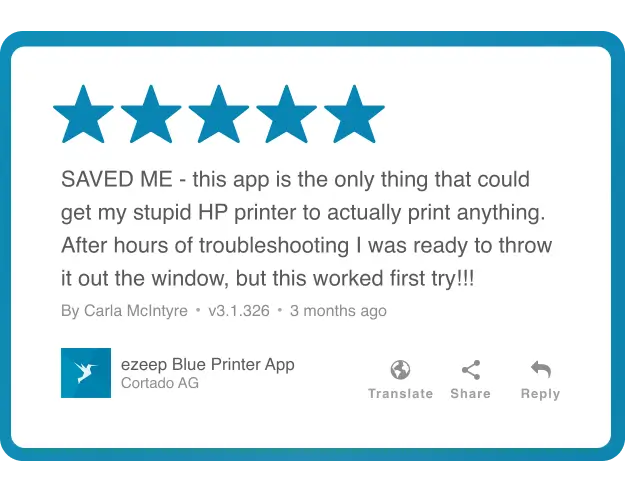
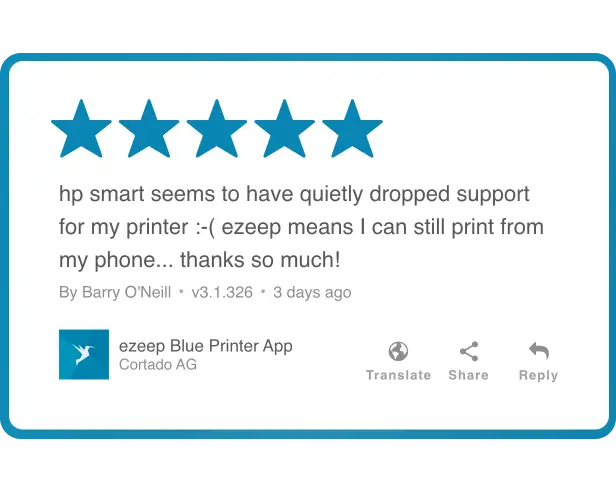
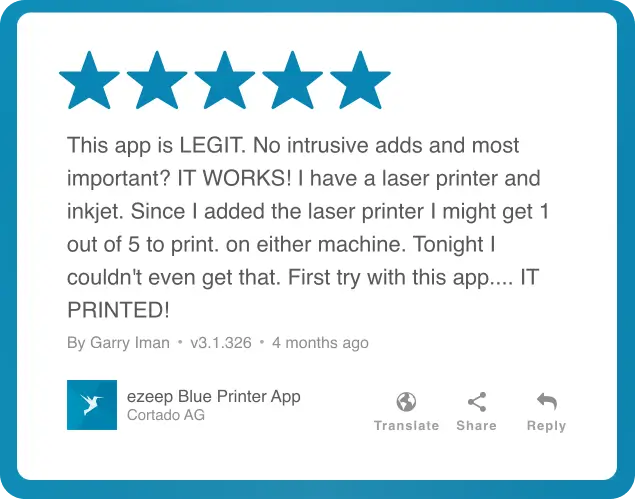
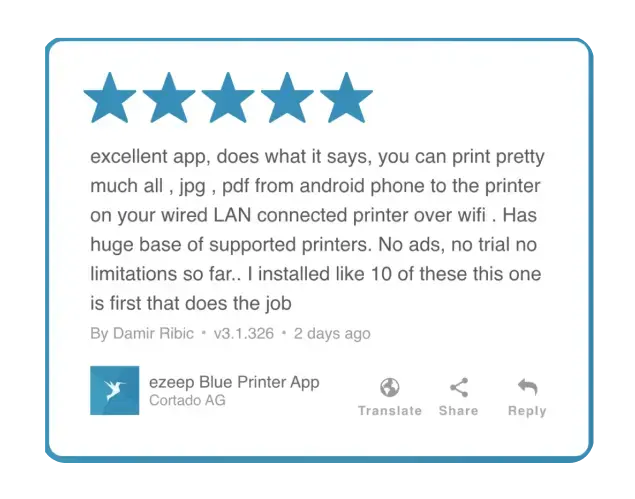
With ezeep, printing documents from your smartphone or tablet to any printer is simple. This solution supports both individual users and businesses, making it a great choice for those seeking a user-friendly, enterprise-grade printing offering.

Printer Sharing: Cloud Printing Saves You Time

What is Mopria? Android Printing for Enterprises