By Charles Ian Pritchard on July 27, 2023
Last updated on March 31, 2026
If you are encountering problems with printers not deploying through Group Policy Objects (GPO), you are not alone. Common issues that prevent printer deployment include problems with the print server, driver compatibility, and network connectivity. Understanding these reasons can help you troubleshoot effectively, and there are alternatives worth exploring if GPO continues to be a challenge for your print environment.
How to Check if Group Policy Settings are Applied Correctly
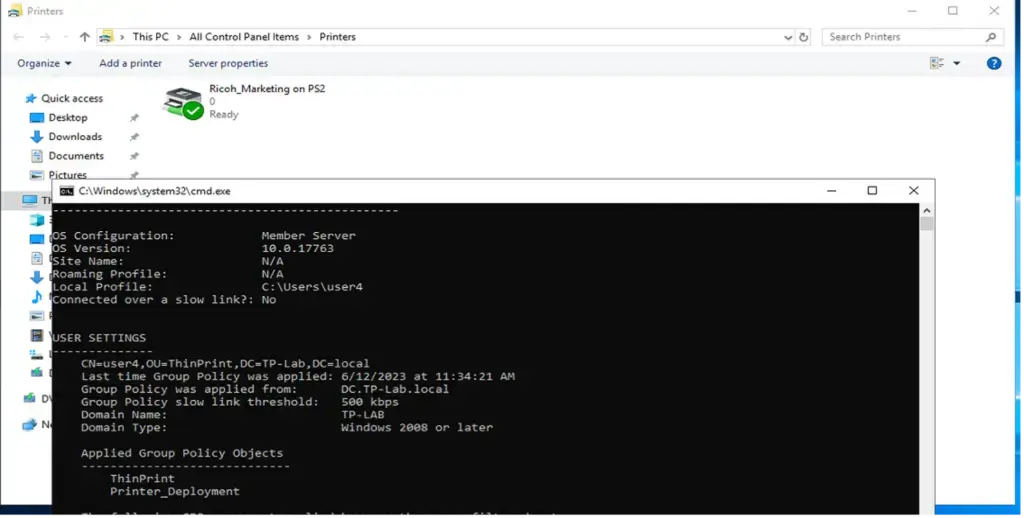
The first step in troubleshooting GPO printer deployment failures is to verify your Group Policy settings. Ensure the printer deployment policy is active and configured to deploy the correct printers. Confirm that the policy applies to the designated organizational units (OU) and that user or computer accounts reside in the proper OU. If settings appear correct, run a Group Policy Results (GPResult) report to check policy application. Execute "gpresult -r" from a client system's command line as a common user to generate a summary of all user and computer policies.
How Driver Availability Affects Printer Deployment
One frequent cause for printers failing GPO deployment stems from Microsoft's recent point-and-print changes. Following a zero-day exploit known as Print Nightmare, Microsoft enhanced the security of the Windows print spooler by preventing print driver installations by standard users. The traditional method of sharing printers and allowing clients to download drivers from the print server via point-and-print no longer functions with default settings. The most secure approach to ensure driver availability is to pre-install all necessary print drivers on client systems.
Ensure the print server and client systems use the same driver version. If you choose to use the point-and-print feature despite security considerations, you can disable Microsoft's restrictions.
How to Check Printer Sharing and Permissions
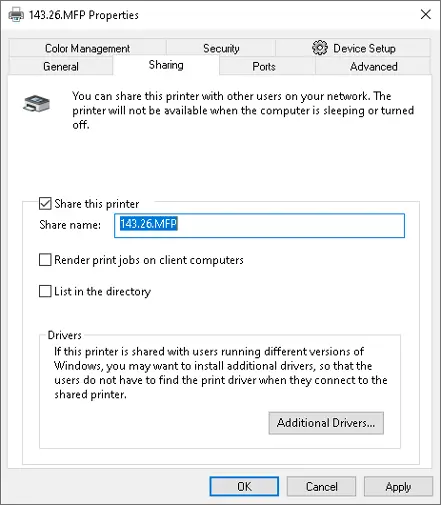
Another common reason for GPO printer deployment issues is disabled printer sharing on the print server.
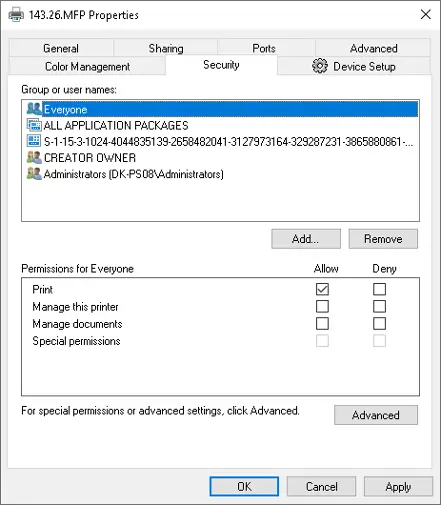
Within the same dialog, verify the security permissions of the printer queue. Make sure all users who need to print to the queue have "print" permissions.
Why Consider a Print Management Service?
If GPO printer deployment challenges persist, exploring a dedicated print management service can help. These services simplify printer deployment and management, offering benefits like print job tracking and cost analysis. While they represent an investment, they can save significant time and resources in the long run.
Map Printers to Non-Windows Endpoints with ezeep
One key advantage of using ezeep is its ability to easily map printers for non-Windows devices, providing platform independence difficult to achieve with standard GPOs. This means ezeep can manage printer mapping across a mix of Windows, macOS, Linux, and mobile devices. You avoid the need for separate print servers or drivers for each device type.
No Driver Installations on Endpoints with ezeep
Another compelling benefit of ezeep is that individual driver installation is not needed on endpoints. Traditionally, IT admins spend considerable time installing, updating, and troubleshooting printer drivers on each machine. With ezeep, you bypass this task, saving time and reducing driver-related problems. Only the ezeep print app needs installation on the endpoint. This happens because the ThinPrint Output Gateway (TPOG) installs with the print app, simplifying setup for each device and simplifying printer deployment.
No Driver Maintenance Thanks to Cloud Rendering with ezeep
With ezeep, cloud rendering eliminates the need for traditional driver maintenance. Print jobs process in the cloud instead of on local machines. This ensures the cloud service handles driver updates, compatibility issues, and routine maintenance, not your IT staff. This frees up IT time and resources for other tasks, contributing to a stable and predictable print experience for users. Built on ThinPrint technology, ezeep handles millions of pages daily for Fortune 500 organizations.
Shorter Registration Times with ezeep
ezeep offers quicker device registration. GPO printer installation can be a long process involving device discovery, driver installation, and setup. With ezeep, devices register rapidly, making printers available for use quickly. This simplified process helps you get new devices operational with minimal delay.
Easy Management of Printer Profiles with ezeep
ezeep's Printer Profiles feature helps businesses manage printing processes. It allows customizable printing preferences for different users sharing the same printer. You can set default print settings for optimal resource use, such as black/white or duplex printing. This minimizes errors and boosts productivity by supporting business processes, for example, by ensuring correct page sizes or printing additional copies for departments. You can visually configure printing preferences and assign them to user groups from one central interface.
Avoid Installations with ezeep.js
Finally, ezeep also provides ezeep.js, a JavaScript-based technology that enables users to print without needing installations or downloads. This is helpful for users who frequently switch machines, as they don't install drivers or software each time they use a new device. By using web technologies, ezeep.js simplifies the user experience and increases productivity.
Key Takeaways
While GPO-based printer deployment has its place, considering a cloud-based print service like ezeep offers several advantages. These include platform-agnostic printer mapping, zero local driver installation, cloud rendering, quick device registration, and easy management. These features provide significant time and resource savings, making ezeep a reliable option for your print management strategy.

AVD Printer Redirection Not Working? Fixes and Solutions

Printer Sharing: Cloud Printing Saves You Time