By Charles Ian Pritchard on October 12, 2022
Last updated on March 31, 2026
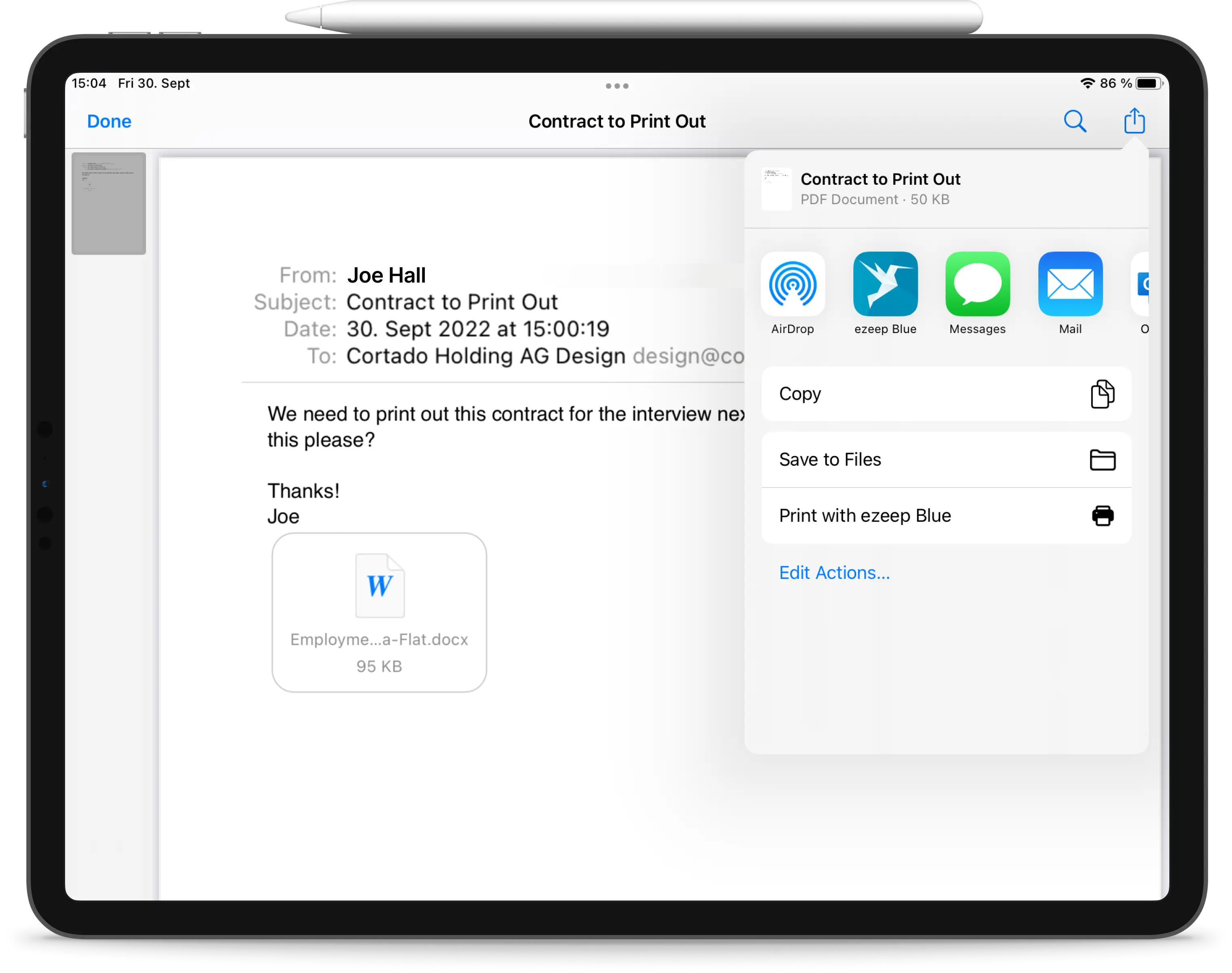
You can easily print emails from your iPhone or iPad, whether your printer supports Apple AirPrint or not. This guide will show you how to print with AirPrint-compatible devices and how to print to any printer using the ezeep app. Getting your emails from screen to paper involves just a few taps.
In the past, printing from a mobile device was a complex task. Today, with an iPhone or iPad and a printer on the same Wi-Fi network, printing emails and attachments is straightforward. Below, we provide clear steps to connect your iOS device to a printer and print your emails.
With Printer Profiles, you can simplify entire printing processes by setting printer settings as defaults for user groups. This helps minimize errors, increase productivity, and reduce printing costs with resource-saving settings like black/white or duplex printing.
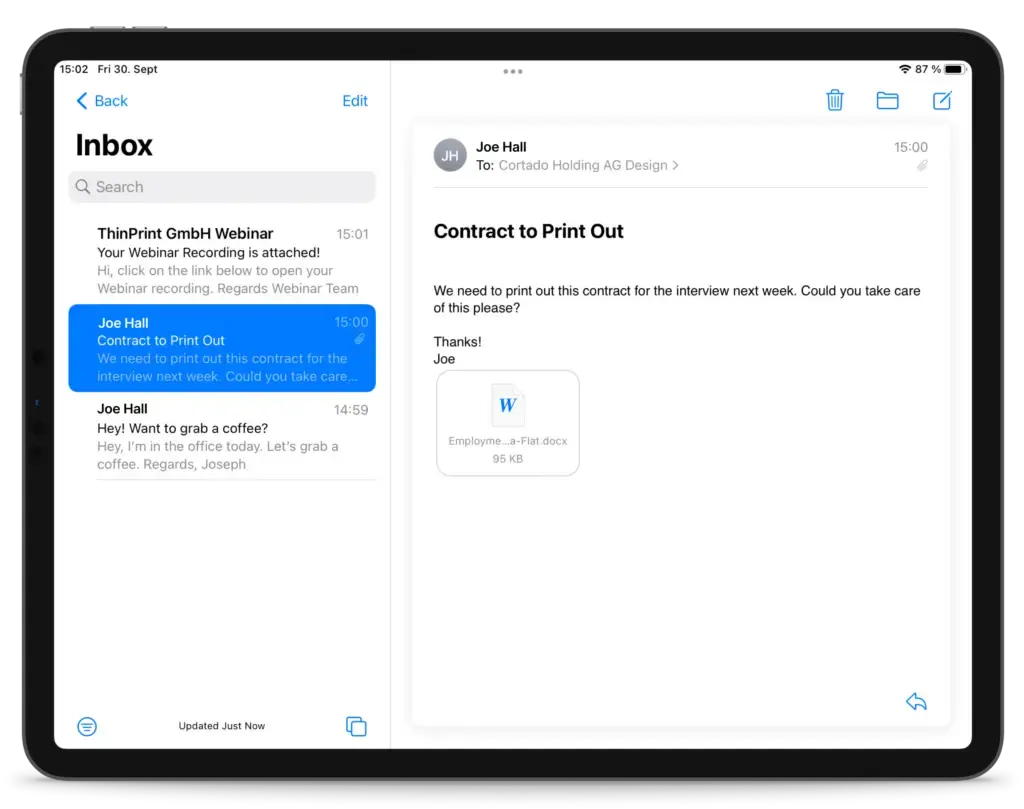
How to Print Emails and Attachments with AirPrint
If your printer supports AirPrint and is on the same WiFi network as your iPhone or iPad, printing emails from the Mail app is simple. You just need to know where to tap.
- Open the email you want to print from your iPhone or iPad.
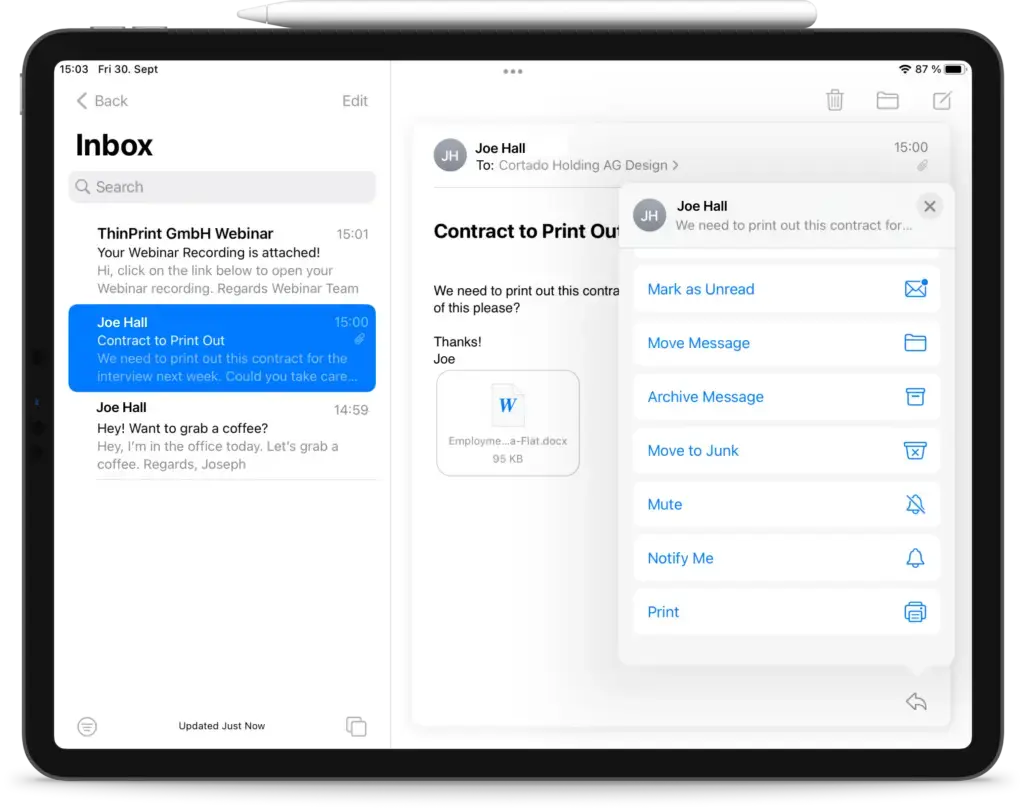
- Tap the small arrow in the bottom right corner of your screen.
- Scroll down the menu and tap Print.
- Select the printer you want to use.
- Adjust settings, if needed, then tap Print in the top right corner.
To print PDF attachments, open the attachment first, then follow the same steps.
How to Print Emails from iPhone without AirPrint
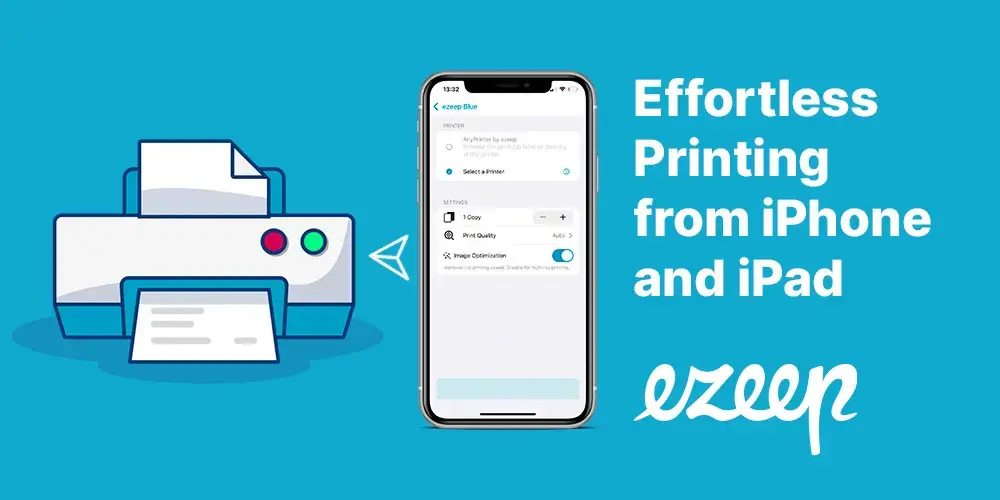
If your printer is not AirPrint compatible, you can use the ezeep printer app. All printers on the same network as your iPhone or iPad will be ready for use instantly, with no lengthy setup.
Connect Your iPhone or iPad To Your Printer with ezeep
- Download the ezeep printer app and create a free account.
- Open the email in the Mail app, or any document you wish to print from your iPhone or iPad.
- Tap on the small arrow in the bottom right corner of your screen.
- Scroll down the menu and tap Print.
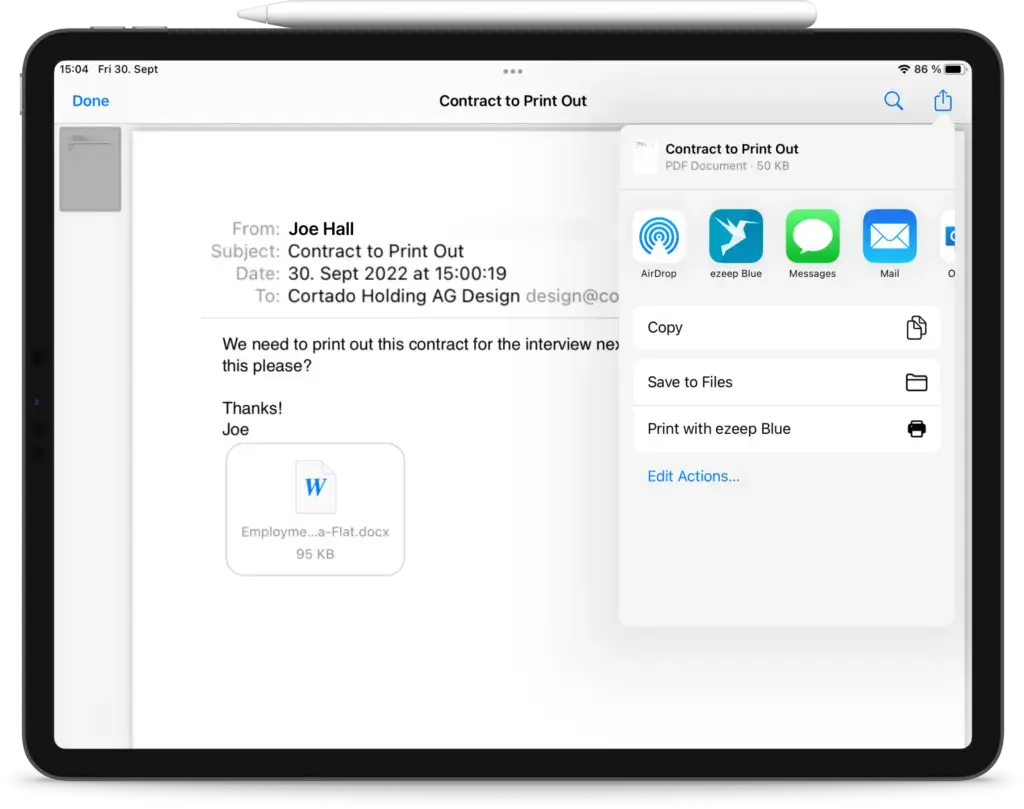
- Zoom in on the print preview with two fingers and tap the share icon in the upper right corner.
- Select the ezeep app and follow the workflow.
Check the preview and click Print. Your email will now print from your iPhone or iPad. ezeep is built on ThinPrint technology, trusted by Fortune 500 organizations for over two decades.
How to Automate Email Printing from iPhone and iPad
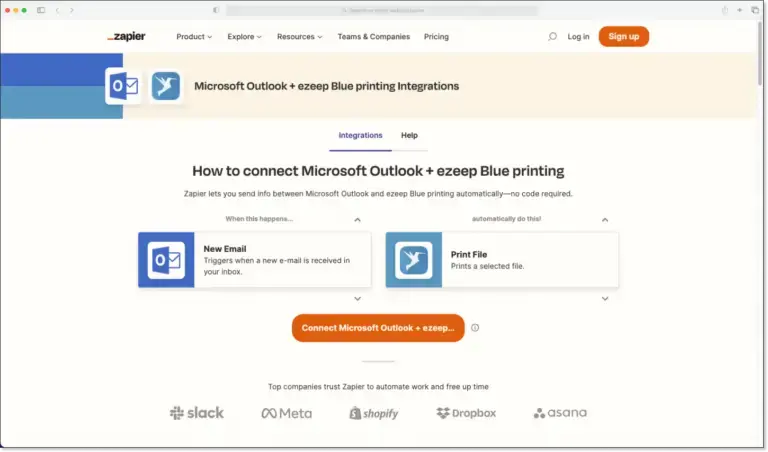
Automate email printing from Outlook and Gmail by linking your inboxes with ezeep via Zapier. You can set ezeep to automatically print new emails or attachments as they arrive. This makes iPhone Mail printing even more efficient.
Print Emails from iPhones and iPads More Securely with ezeep AnyPrinter
For confidential emails, consider using the AnyPrinter from ezeep. This feature stores your print job in a virtual queue until you authenticate yourself at the device. You release the print job by scanning the printer's QR code with your mobile device or by using an NFC card with the ezeep release station. This ensures documents remain protected until you are physically at the printer.
How to Print from iPhone & iPad (with or without AirPrint)

What is Mopria? Android Printing for Enterprises