By Charles Ian Pritchard on October 7, 2022
Last updated on March 31, 2026
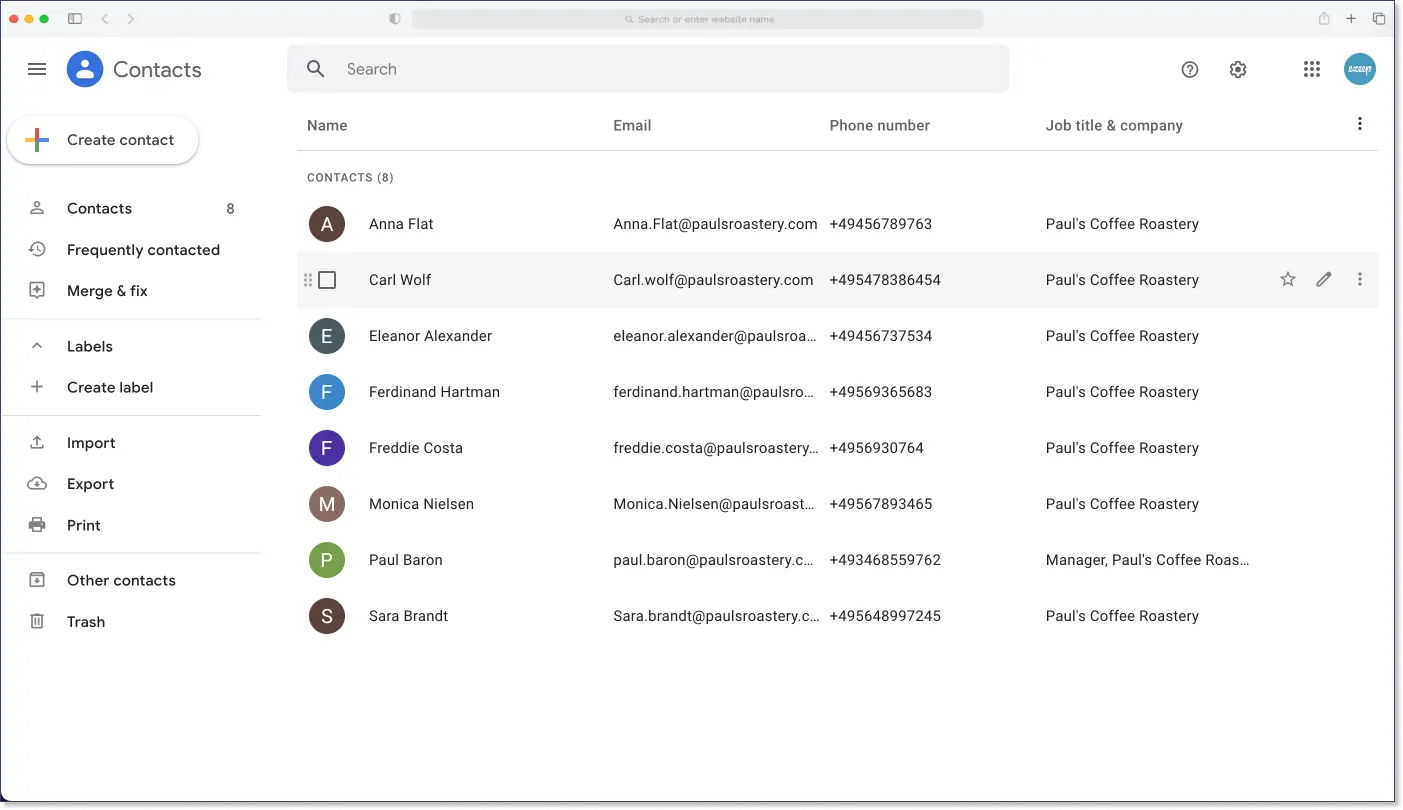
It happens more often than expected: You lose your phone or laptop and can't remember your password either. Sometimes it makes sense to print out your Google contacts for an emergency backup or traditional paper records. This guide shows you step-by-step how simple it is to print your Gmail contacts from your desktop PC or mobile device.
To print contacts directly from Gmail, you don't have to manually create a list. Instead, you can download, export, or send them straight from your contact list to your printer. This is just as straightforward as printing emails directly from Gmail.
How to Print Gmail Contacts on Your PC or Laptop
You can easily print your Google Contacts from a desktop device in a few steps. This method is useful for quickly getting a physical copy of your important contacts.
1) Open your browser and Gmail.
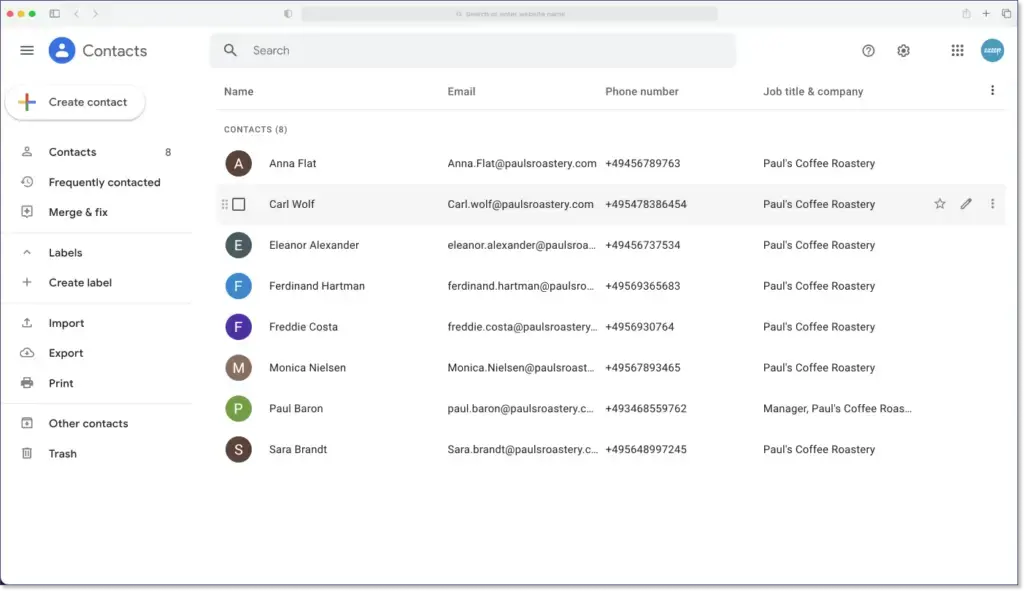
2) Click on the Google Apps grid in the upper right corner between Settings and your profile picture. Alternatively, you can go directly to Google Contacts.
3) Click Contacts on the left and wait until the number of contacts you have is listed.
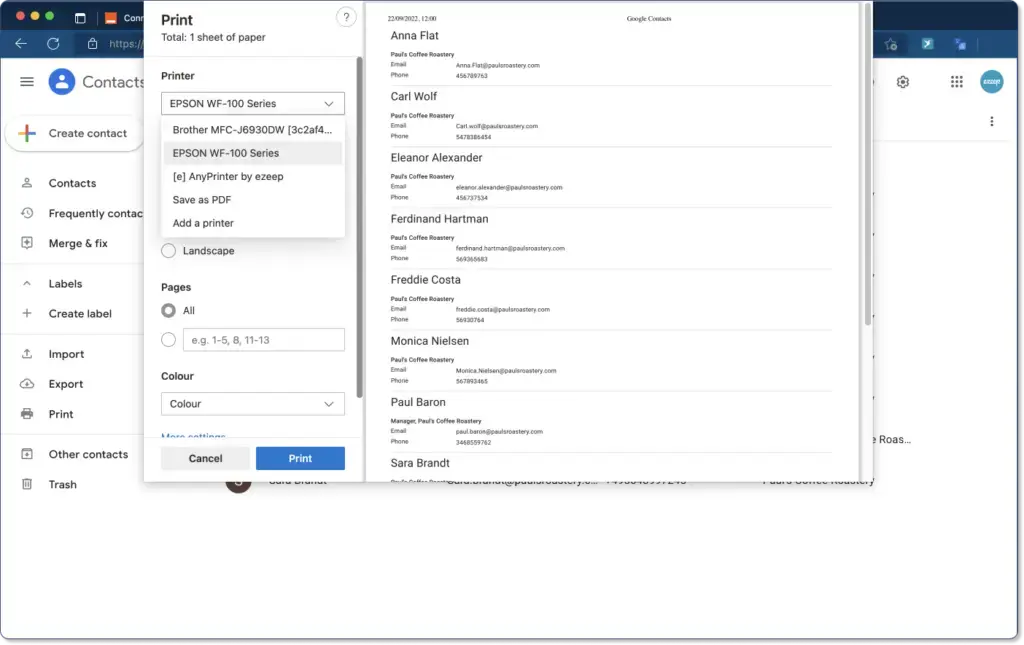
4) Click on Print
5) Now select the printer of your choice.
Troubleshooting Tip: Is the printer not showing up? With ezeep, you can print your Gmail contacts from any device. No matter if you are on the same network as your printer, ezeep's different apps for Windows, MacOS, iOS, Android, and ChromeOS allow you to reach your printer from anywhere. You'll just need to create a free account and connect your printer to ezeep with our free connector software or an ezeep Hub. Details about how ezeep works here.
6) Check the preview and click print. Your Google Contacts will now be printed.
How to Print Google Contacts Automatically
Automation can save you time when managing your contacts. By setting up automated workflows, you can ensure your contact lists are always up-to-date and printed without manual effort.
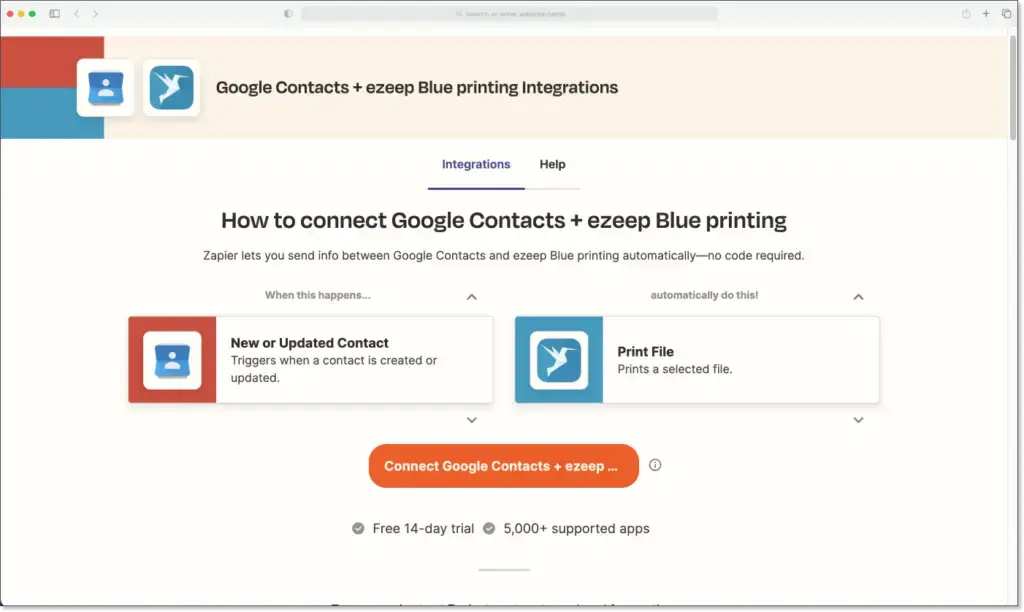
Another advantage of printing your Google Contacts with ezeep is that you can use automation tools like Zapier. With the help of an automated Zapier workflow, Google Contacts and ezeep can be linked, allowing you to print your Gmail contacts without any manual interaction.
For example, you can specify that whenever a new contact is created or existing contact information is updated, a printout is automatically generated.
Find out more about how to set up Zapier and ezeep here.
Print Gmail Contacts Securely with AnyPrinter from ezeep
If your contacts are confidential, secure printing is essential. AnyPrinter helps keep your sensitive information protected until it's physically released by you at the printer.
When you use ezeep's AnyPrinter, the print job is stored in a virtual queue. The print job is released to the printer when you come to the device and authenticate yourself. You start printing either by scanning the printer's QR code with your mobile device or by using your NFC card with the ezeep Release Station.
Print your Google contacts with ezeep
ezeep is free for up to 10 users.
Print Emails from iPhones and iPads

Print Faster from Windows Virtual Desktop with IGEL and ezeep