By Charles Ian Pritchard on January 25, 2024
Last updated on March 31, 2026
Printing documents from an iPhone or iPad offers convenience for both personal and business use. Whether you need a hard copy of an important file or a crucial document for work, your iOS device can connect to a printer and handle the job. This guide details how to print from an iPhone or iPad, covering various connection methods including AirPrint and cloud-based options.
How Do I Connect an iPhone to a Printer?
Connecting an iPhone or iPad to a printer to print documents involves several methods, from built-in Apple features to cloud-based services that expand your printing capabilities.
- AirPrint: This native iOS feature lets you add a wireless printer and print over a Wi-Fi network. If your printer supports AirPrint, your iPhone or iPad simply needs to be on the same Wi-Fi network.
- Cloud-Based Printing Service: For printing to any printer, anywhere, or enabling others to print, consider a cloud-based service like ezeep. All you need is the ezeep app and an account.
- Bluetooth: Some printers have Bluetooth, allowing wireless connection with your iPhone or iPad. Ensure both devices have Bluetooth enabled and are paired. While suitable for private use, it's generally best to deactivate Bluetooth on multifunction devices in business settings.
- Wi-Fi Direct: Newer printers may offer Wi-Fi Direct, which allows direct connection to your iPhone or iPad's Wi-Fi without a separate router. Activate this feature on the printer and connect your iOS device to its Wi-Fi network.
- NFC: Near Field Communication allows connection by tapping devices together. Your printer needs an NFC tag, and your iPhone or iPad must have an NFC reader.
- USB Cable: If a printer lacks AirPrint, you can connect it via USB. This typically requires a third-party app and a connector (Lightning or USB-C to the printer's interface). Often, it's simpler to connect USB printers to a cloud service like ezeep and print via the cloud.
How Do You Print Documents From an iPhone Using AirPrint?
To print from your iPhone or iPad using AirPrint, ensure your printer is on and connected to the same Wi-Fi network, then select the document, tap the share icon, and choose your printer from the available list.
- Make sure the printer is turned on and connected to the same Wi-Fi network as your iPhone or iPad.
- On your iPhone or iPad, open the document or image you want to print.
- Tap the share icon (the square with an arrow pointing out of it).
- Tap "Print."
- Select your printer from the list.
- Adjust copies and print settings, then tap "Print."
How To Print from iPhone Without AirPrint
If you manage printers for your organization or frequently print from your iPhone or iPad, ezeep provides an easier and more secure method. ezeep is a cloud-based printing service that lets users print from an iPhone or iPad to any printer, anywhere, even if it doesn't support AirPrint or only connects via USB. There's no need to buy an AirPrint printer just to enable mobile printing.
To connect a printer with ezeep and print documents from an iPhone or iPad, follow these steps:
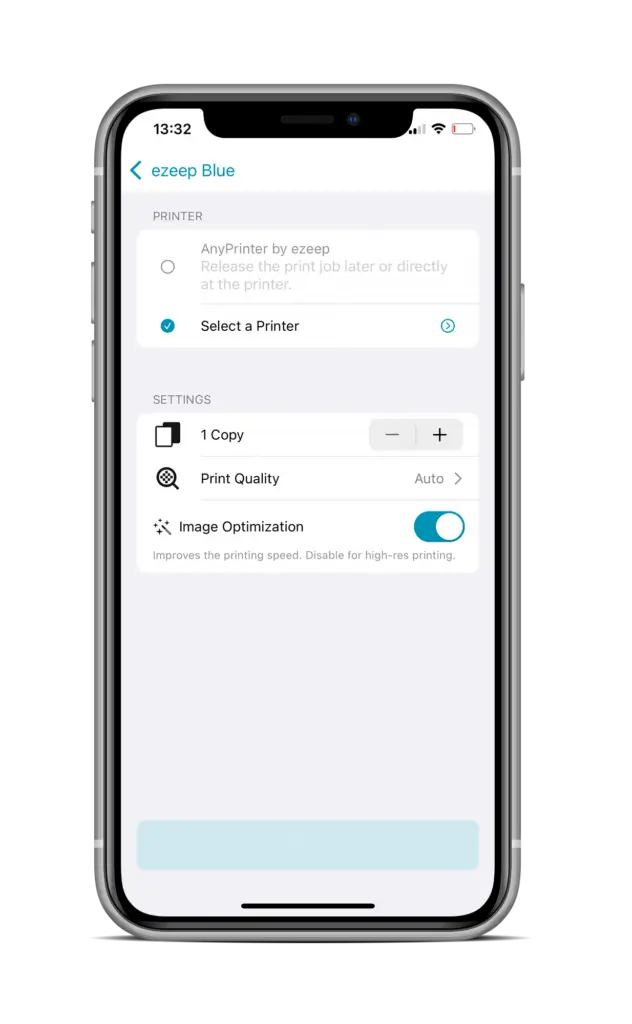
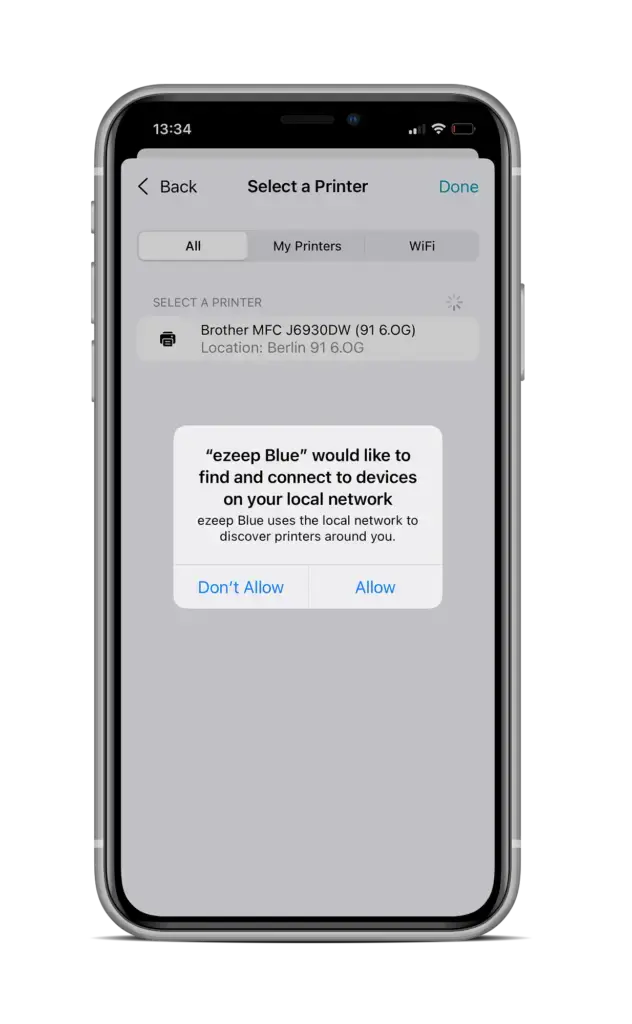
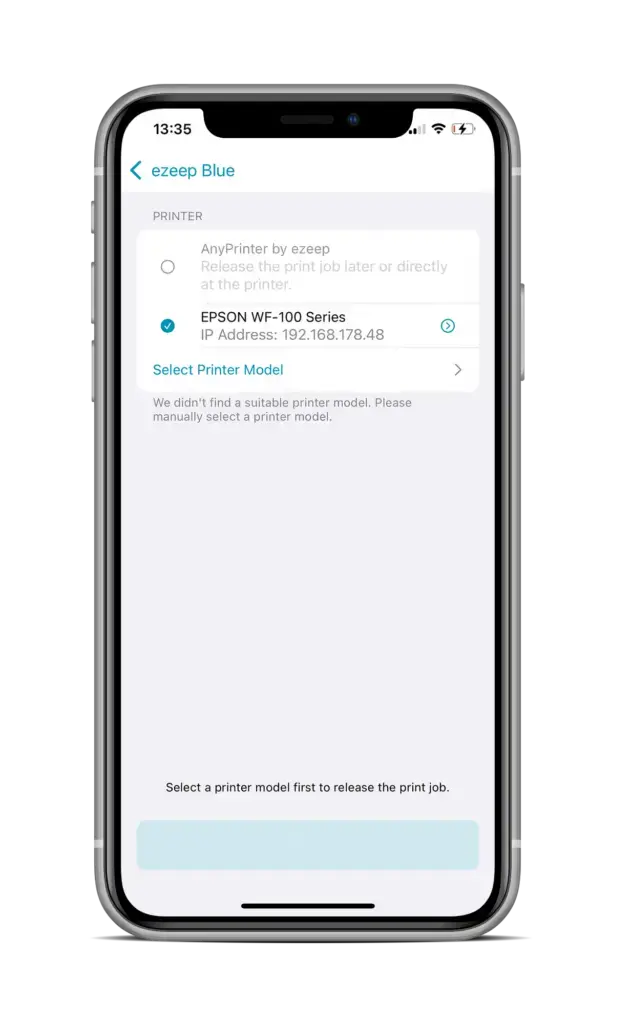
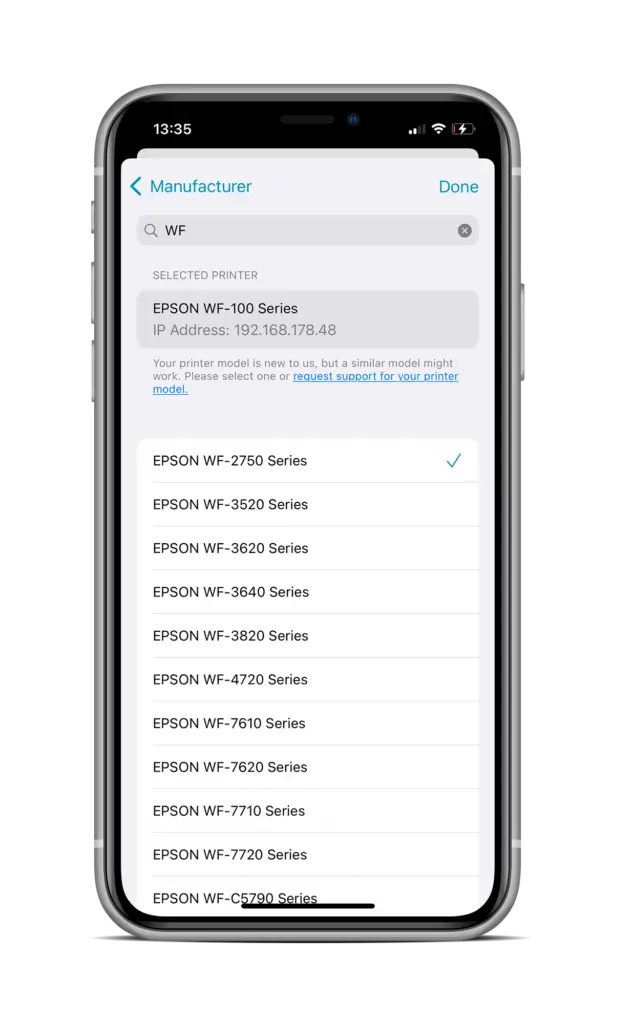
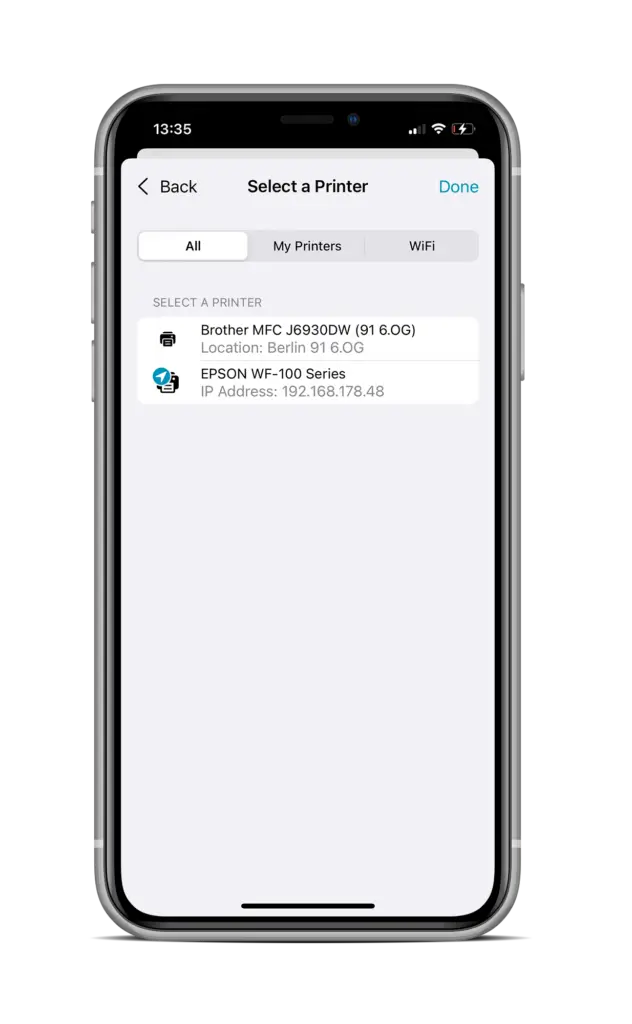
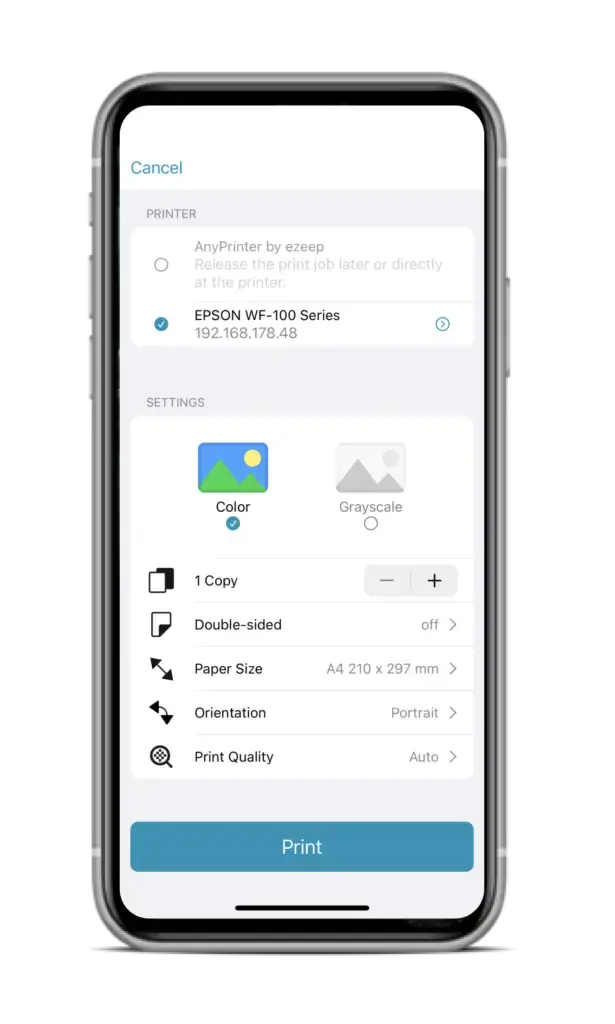
- Install the ezeep app on your iPhone or iPad and sign up or sign in. If you're new, create an ezeep Organization; this allows connecting and assigning multiple printers to users.
- Tap the "Print" button in the bottom right corner of the app.
- Follow the on-screen instructions to select your printer from "All," "My Printers," or "Wi-Fi." When using a printer for the first time over Wi-Fi, you'll choose the printer model. If your model isn't listed, try a similar one; they often work. Specific printer models can also be requested in the app.
To connect a USB printer with ezeep, or enable printing from any location, follow these steps:
- Install the ezeep Connector on a Windows PC or Windows Server. This is available for download after signing up at ezeep.com. Ensure your USB printer is already installed on the Windows PC/Server where you'll install the Connector. (A connector for macOS printers is coming soon).
- Activate the printer by assigning it to yourself in "My Printers." You can also share printers with colleagues by navigating to "Users & Groups" and clicking "Add User."
- Install the iOS App, sign in, and print. Once your printer is added to your ezeep account, you can print to it from anywhere, provided it's on and connected to the internet.
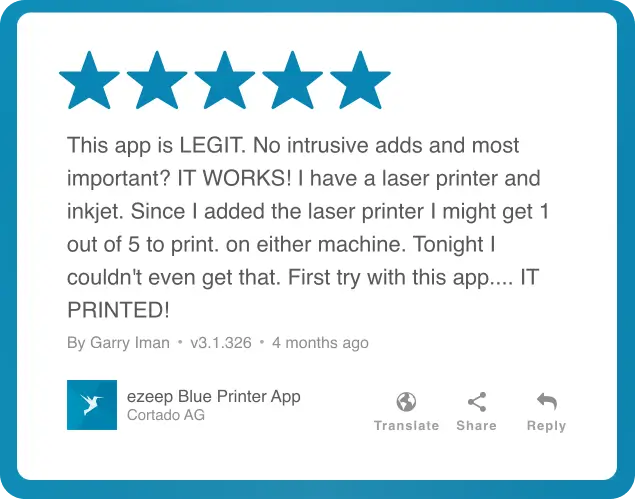
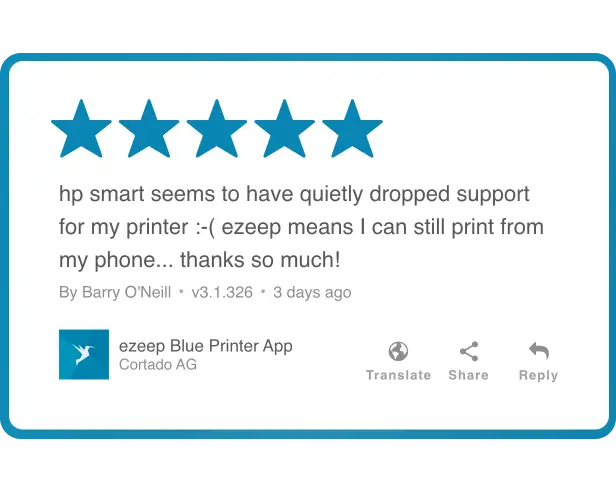
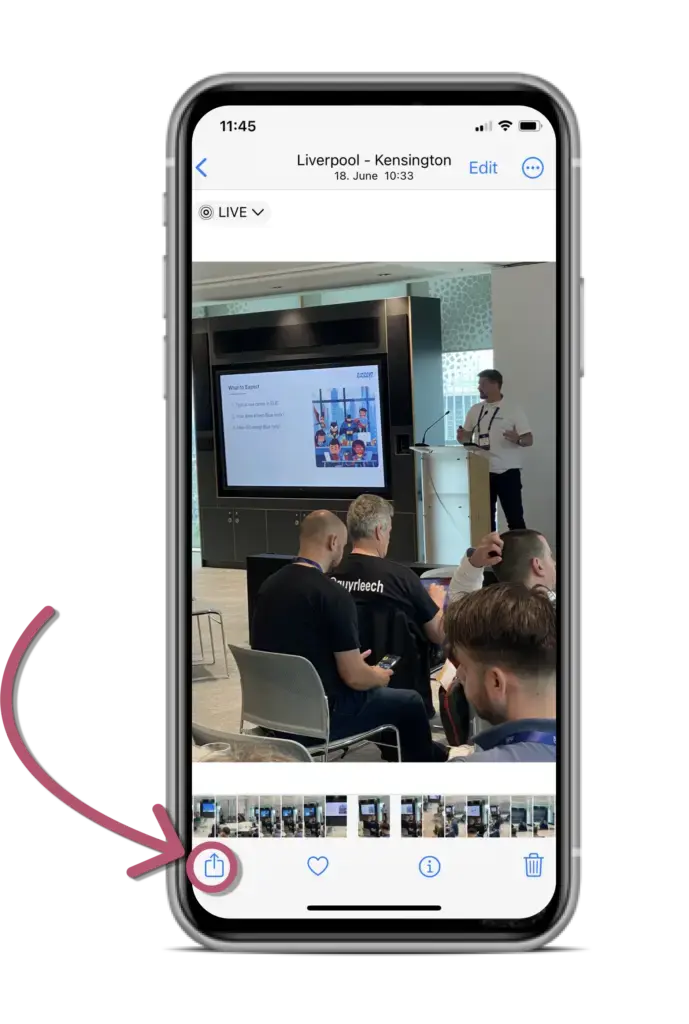
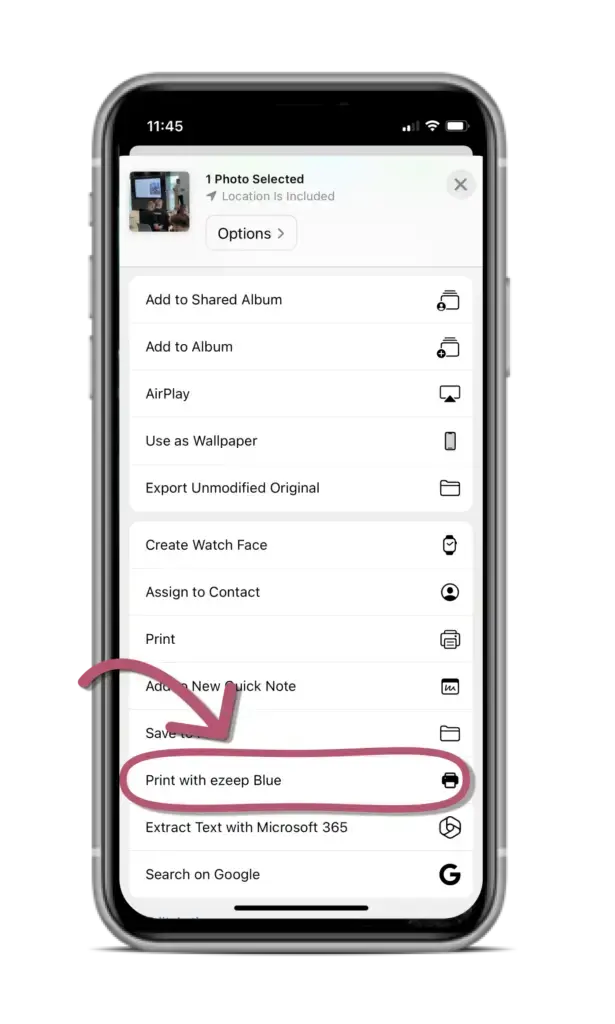
To print directly from an iOS application from your iPhone or iPad using the ezeep app, you can use the Share button or a specific workflow for apps that don't display the Share button directly.
Printing via the Share Button
Printing When the Share Button Doesn't Appear (e.g., Email)
- Open the desired document you wish to print from your iPhone or iPad.
- Tap on the small arrow in the bottom right corner of your screen.
- Scroll down the menu and tap Print.
- Zoom in on the print preview with two fingers and tap the share icon in the upper right corner.
- Select the ezeep app / print with ezeep and follow the workflow.
- Check the preview and tap Print. Your document will now print from your iPhone or iPad.
With ezeep, you can easily print documents from your iPhone or iPad to any printer, anywhere. With Printer Profiles, you can simplify entire printing processes by easily setting printer settings as defaults for user groups. This helps minimize errors, increase productivity, and reduce printing costs with resource-saving settings like black/white or duplex printing. ezeep is built on ThinPrint technology, trusted by Fortune 500 organizations, processing millions of pages daily. Its cloud-native architecture offers multi-OS support for Windows, macOS, ChromeOS, iOS, and Android, and requires no print drivers due to cloud rendering.
This approach is user-friendly and supports everyone from private users to companies seeking an enterprise-grade print service. Companies can also use our quick ROI Calculator to discover how ezeep can optimize their IT budget.
Fast and easy printing for iPhones and iPads!
✓ Our app is free to use and is ad-free.
✓ Simply download and register to start printing.
✓ Suitable for both private use and the enterprise.
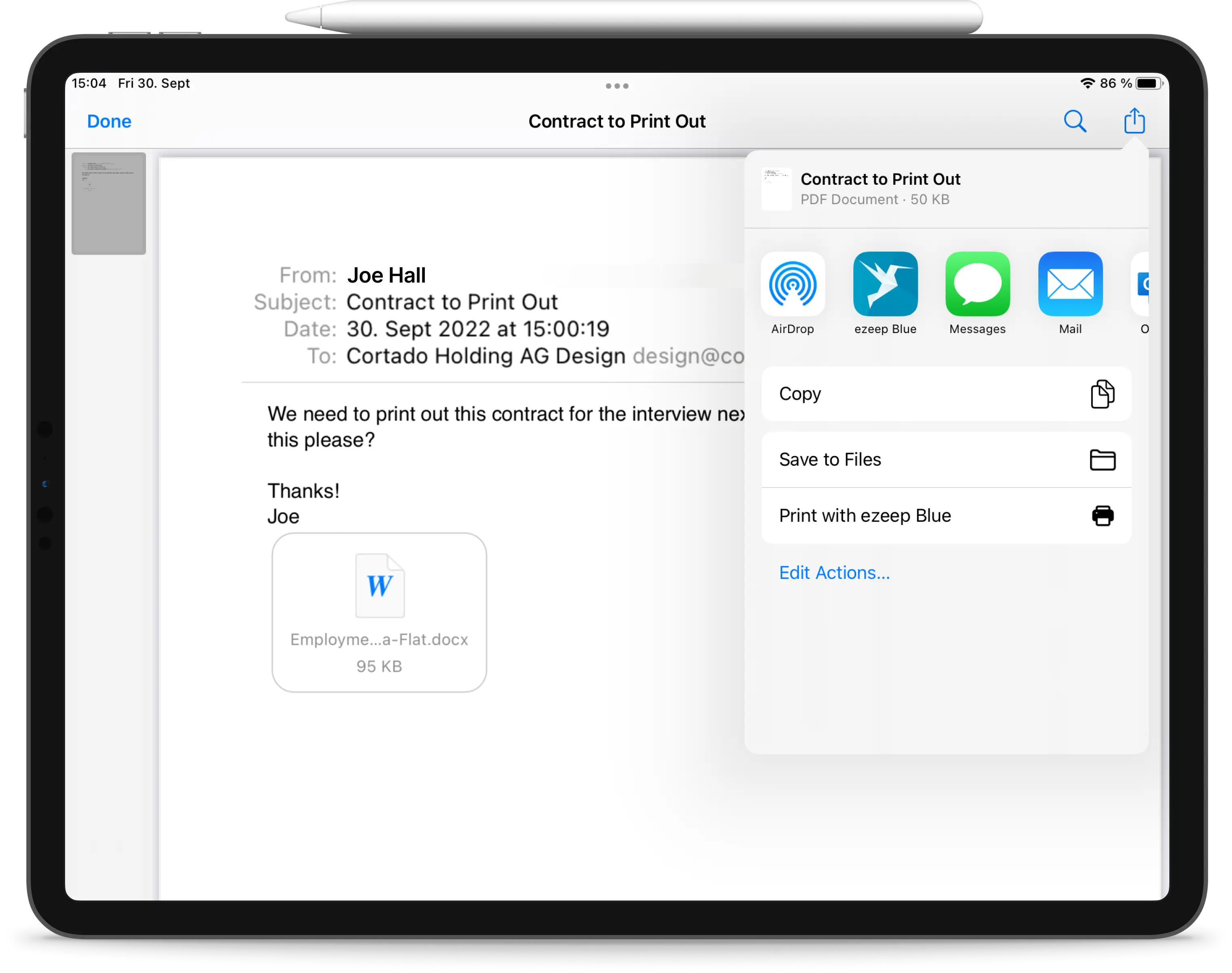
Print Emails from iPhones and iPads

Printing From Azure Virtual Desktop (AVD) on Apple Devices