How to Print from ChatGPT: A Complete Guide
By Robert Noonan on May 9, 2025
Whether you’re a private user wanting to save a meaningful chat or a business professional sharing important information, being able to print from ChatGPT quickly is a useful tool to have at your disposal. Yet, direct printing from ChatGPT isn’t possible out-of-the-box. But in this post we take a look at how to get around this With ezeep's cloud printing and ezeep GPT integration, which allows you to print your ChatGPT screen text directly and without any hassle.
Default Printing from Chat GPT
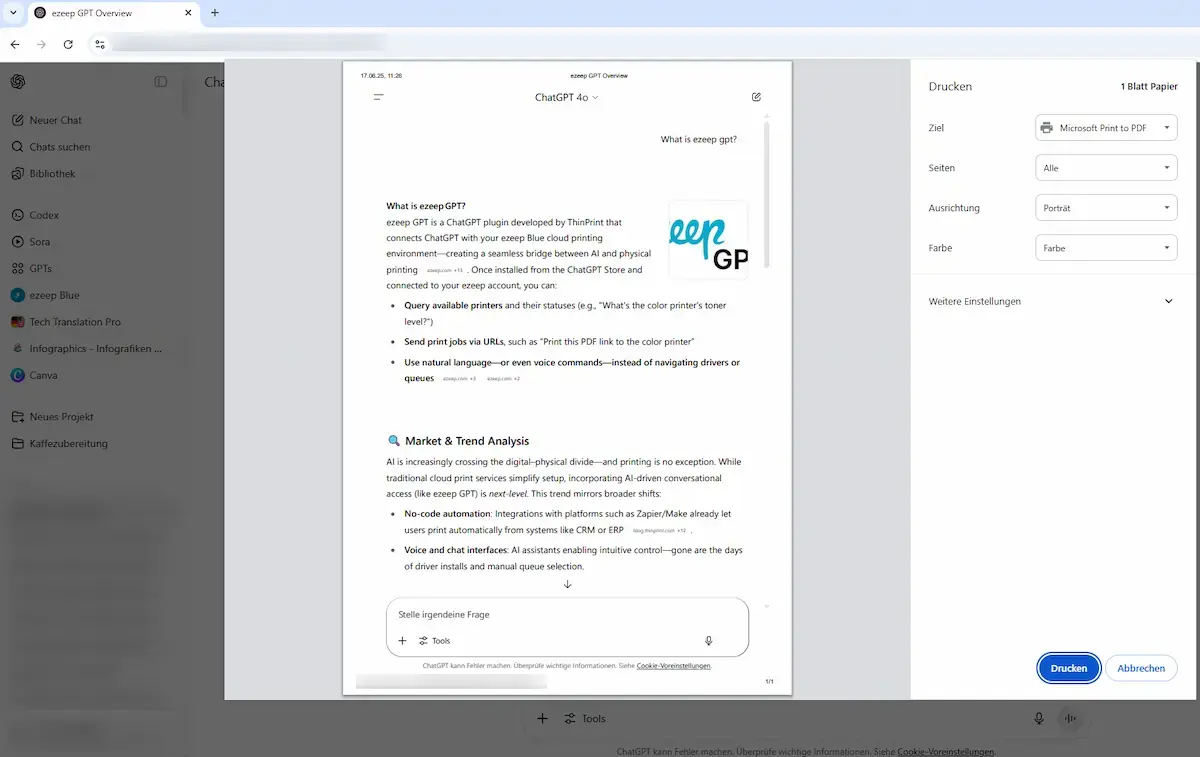
Many users face challenges when trying to print ChatGPT text directly from the browser. Often, not all the conversation gets printed, leaving out important details.
Currently, ChatGPT does not support direct printing within the apps (e.g. Mac or iOS) either. Users often need to copy the conversation into another app like Word or Notes to print, which is time-consuming and far from ideal in an enterprise context.
How to Print from ChatGPT on Your Desktop with ezeep GPT
Fortunately, with ezeep GPT, you can print ChatGPT text effortlessly without copying or pasting. If you’re wondering how to print from ChatGPT on your desktop, ezeep GPT makes the process seamless. Here’s how you can print your entire ChatGPT conversation in a few steps:
- Open ChatGPT and go to the conversation you want to print.
- Activate ezeep GPT by selecting it within the ChatGPT interface.
- Choose the option to Print with ezeep.
- Select your desired printer from your ezeep Blue network.
- Click Print, and your conversation will be sent to the printer instantly.
How Can I Connect a Printer to Print from ChatGPT
To print from ChatGPT, all you need to do is connect your printer to ezeep Blue. Here’s how:
- Sign up for ezeep if you haven’t already. This free, cloud-based platform lets you connect printers globally.
- Install the ezeep app on your desktop or device, and log in.
- Add your printer to the ezeep dashboard, most printers are supported.
- Now, when you use ezeep GPT, your printer will be available for printing from ChatGPT.
Once your printer is connected, you can print ChatGPT content from your desktop or mobile device without additional steps.
How to Print from ChatGPT on Your Smartphone or Tablet
Wondering how to print from ChatGPT on a mobile device? ezeep GPT also works perfectly on smartphones and tablets. Here’s how:
- Open the ChatGPT app and select the conversation to print.
- Activate ezeep GPT.
- Select Print with ezeep and pick your printer from the ezeep network.
- Tap Print, and your conversation will be printed instantly.
Without ezeep GPT, printing from ChatGPT involves copying the text into an app like Notes or Pages, then using the print function from that app. While this workaround works, ezeep GPT is faster and eliminates the need for all those extra steps.

Frequently Asked Questions
Can ChatGPT print directly?
No, ChatGPT does not support direct printing. Neither the web version nor the Mac or iOS apps include a native print function for conversations or documents. Users typically have to copy text into Word or Notes and print from there — a slow, lossy workaround. With ezeep GPT, you can print entire ChatGPT conversations in one step: install the extension from the ChatGPT Store, connect it to your free ezeep account, and send content straight to any printer using a voice command.
How do I print from ChatGPT?
To print from ChatGPT, install the ezeep GPT extension from the ChatGPT Store and connect it to your ezeep account. Then open the conversation you want to print, activate ezeep GPT in the chat, choose "Print with ezeep," and select your printer. The print job is sent instantly - from desktop, tablet, or smartphone. No copy-paste, no formatting loss, no printer driver installations required.
Does ezeep GPT work from mobile devices?
Yes, ezeep GPT works fully on smartphones and tablets. Open the ChatGPT app on iOS or Android, select the conversation you want to print, activate ezeep GPT, and tap "Print with ezeep." Choose a printer from your ezeep network and the document is sent directly. Because ezeep is cloud-based, you can print to printers in your home office, at headquarters, or at any other location — as long as the printer is connected to your account.
Which printers work with ezeep GPT?
ezeep GPT works with any printer connected to your ezeep account, regardless of manufacturer or model. This includes network printers, USB printers connected via the ezeep Hub, label printers, thermal printers, and older devices without modern interfaces. All rendering and driver handling happens in the ezeep cloud, so no printer drivers need to be installed on your endpoints. Most common printers from HP, Canon, Epson, Brother, Lexmark, Zebra, and others are supported out of the box.
Is my data safe when printing from ChatGPT?
Yes, ezeep GPT uses enterprise-grade security to protect your documents. Print data is encrypted in transit over HTTPS with TLS 1.3 and at rest with AES-256 through Microsoft Azure. Documents are deleted immediately after printing and are never used to train AI models. ezeep operates under GDPR with Standard Contractual Clauses for international data transfers, and the Microsoft Azure platform is independently audited under ISO 27001 and SOC 2.
- April 2026 (2)
- March 2026 (3)
- February 2026 (2)
- January 2026 (2)
- December 2025 (1)
- November 2025 (4)
- October 2025 (4)
- September 2025 (1)
- August 2025 (4)
- July 2025 (1)
- June 2025 (3)
- May 2025 (2)
- April 2025 (5)
- March 2025 (6)
- February 2025 (5)
- January 2025 (3)
- December 2024 (4)
- November 2024 (4)
- October 2024 (6)
- September 2024 (2)
- August 2024 (2)
- July 2024 (4)
- May 2024 (4)
- March 2024 (1)
- February 2024 (3)
- January 2024 (1)
- December 2023 (1)
- November 2023 (2)
- October 2023 (3)
- September 2023 (2)
- August 2023 (1)
- July 2023 (2)
- June 2023 (2)
- May 2023 (1)
- April 2023 (3)
- March 2023 (5)
- February 2023 (4)
- January 2023 (2)
- December 2022 (3)
- November 2022 (2)
- October 2022 (5)
- September 2022 (4)
- August 2022 (1)
- July 2022 (3)
- June 2022 (4)
- May 2022 (2)
- April 2022 (4)
- March 2022 (4)
- February 2022 (2)
- January 2022 (1)
- October 2021 (1)
- July 2021 (5)
- June 2021 (4)
- May 2021 (3)
- April 2021 (1)
- March 2021 (4)
- February 2021 (1)
- December 2020 (1)
- November 2020 (1)
- October 2020 (1)
- September 2020 (1)
- July 2020 (1)
- June 2020 (1)
- April 2020 (4)
- March 2020 (3)
- February 2020 (3)
- January 2020 (1)
- August 2019 (2)
- May 2019 (1)
- January 2018 (1)
You May Also Like
These Related Stories

ezeep GPT – The Bridge From AI to Printed Paper

Printer Sharing: Cloud Printing Saves You Time