By Charles Ian Pritchard on June 8, 2022
Last updated on April 13, 2026
You can now automatically assign users to groups based on their email domain directly within the ezeep Admin Portal. This new capability simplifies user management, helping IT administrators save significant time by automating a common task.
This feature simplifies user onboarding and helps you manage your print environment more efficiently. By setting up rules once, you keep user access consistent and reduce manual configuration.
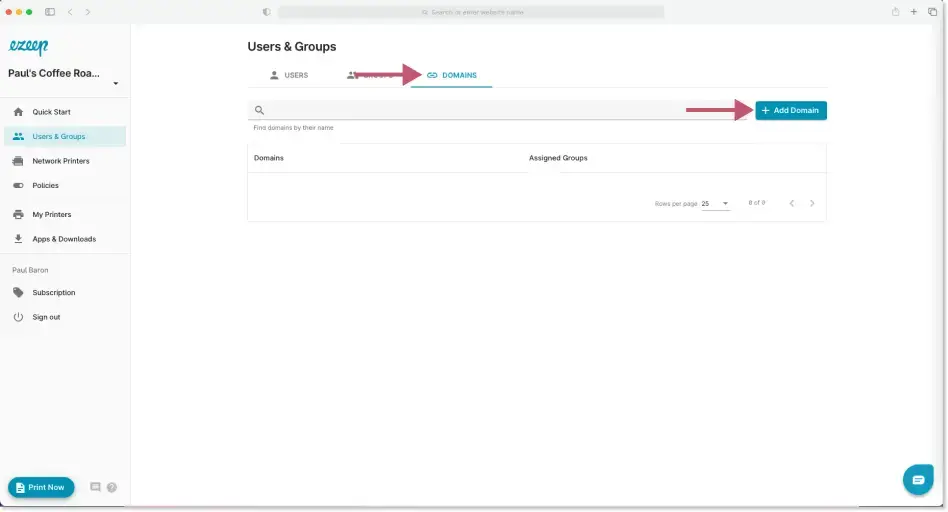
To start, go to Users and Groups in the ezeep Admin Portal. A new option called “Domains” is now available. Clicking on this view displays all existing domains you have created and the groups they are associated with. You can create new automations by clicking the “Add Domain” button in the top right.
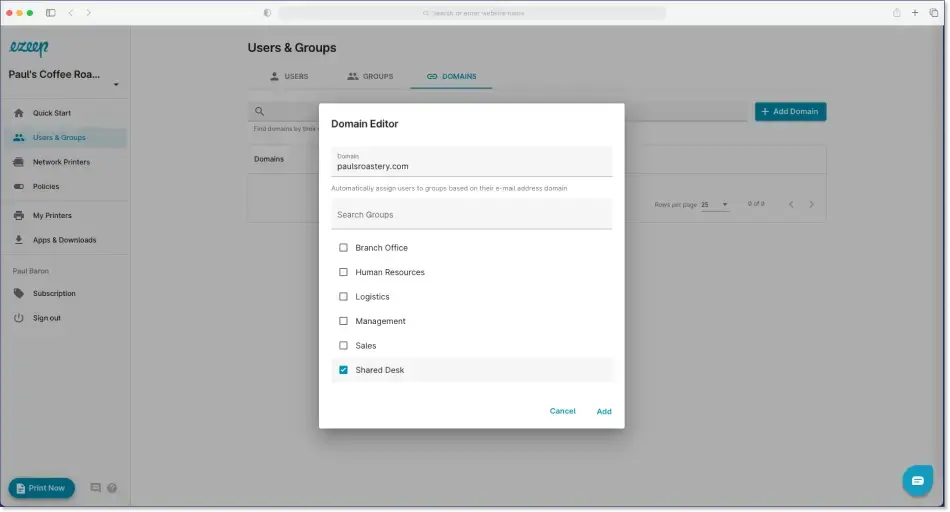
For example, imagine you want all new users from Paul's Coffee Roastery to be automatically assigned to the “Shared Desk” group. Click on Add Domain to open the Domain Editor. Here, input the domain "paulsroastery.com" and select the “Shared Desk” group. Any new users added with an email ending in paulsroastery.com will land in the Shared Desk group by default. They can immediately print to the printers in this group. This gets users printing faster and reduces the time spent managing and creating groups.
How to Automate Group Assignment
Automated group assignments help maintain organization and ensure users have immediate access to the correct printers without manual intervention. This reduces administrative overhead and potential errors in user provisioning.
If you are already an ezeep user, this feature is available now in the ezeep Admin Portal. You can start customizing your workflows today.
Not using ezeep yet? You can find more information about our free trial on our website.
User Onboarding for Google Workspace
Introducing Groups for User Management