
New ezeep Printer & Settings Pages
By Linda Martin on April 8, 2013
Last updated on April 13, 2026
ezeep is dedicated to improving the user experience, continually refining its features based on real-world usage. The latest update introduces redesigned Printers and Settings Pages, making it simpler than ever for leaders to manage and share printers within their organizations. These enhancements ensure that connecting printers and customizing user access is intuitive and efficient, reflecting a commitment to responsive development that directly addresses user needs.
What are the updated Printers and Settings Pages for?
They are your central point for managing printing within your organization, letting leaders connect specific printers with different user groups. The Printers Page guides you through a simplified process for sharing your printers. The Settings Page allows you to customize who can use them and how, ensuring tailored access for various teams or individuals.
For example, a church pastor could create an ezeep group for their core team, granting unlimited, full-color printing on the office printer. A separate group for the church choir director might offer black-and-white only printing to manage costs, as they frequently print sheet music from an iPad. For the wider congregation, an ezeep churchgoers group with a special access code could be set up. This allows guests to print sermon notes on-site using a public printer, ensuring only those who truly want a paper copy receive one, reducing waste. Whatever the need, these tools help manage printing efficiently.
How have the pages improved?
Previously, users found the design unclear and difficult to navigate, leading to confusion about necessary actions. This feedback prompted a complete redesign, resulting in an updated platform that is more intuitive and user-friendly, directly addressing prior complexities.
What can you do differently now?
- New focus on the most important information: how you share your printer.
- Edit the name, address, and paper size of your printer directly on the page.
- Prompts to share your printer with others if you haven't already.
- Online printers are clearly indicated with a green line when active.
- Offline printers are clearly indicated with a gray line when there is an issue.
- Editing an existing printer or creating a new one directs you to a new settings page.
- In settings, choose to share your printer within closed or open networks of users.
- Set a password if your printer is shared within a network or publicly.
- If you have the payment add-on, set a price per-page for printing.
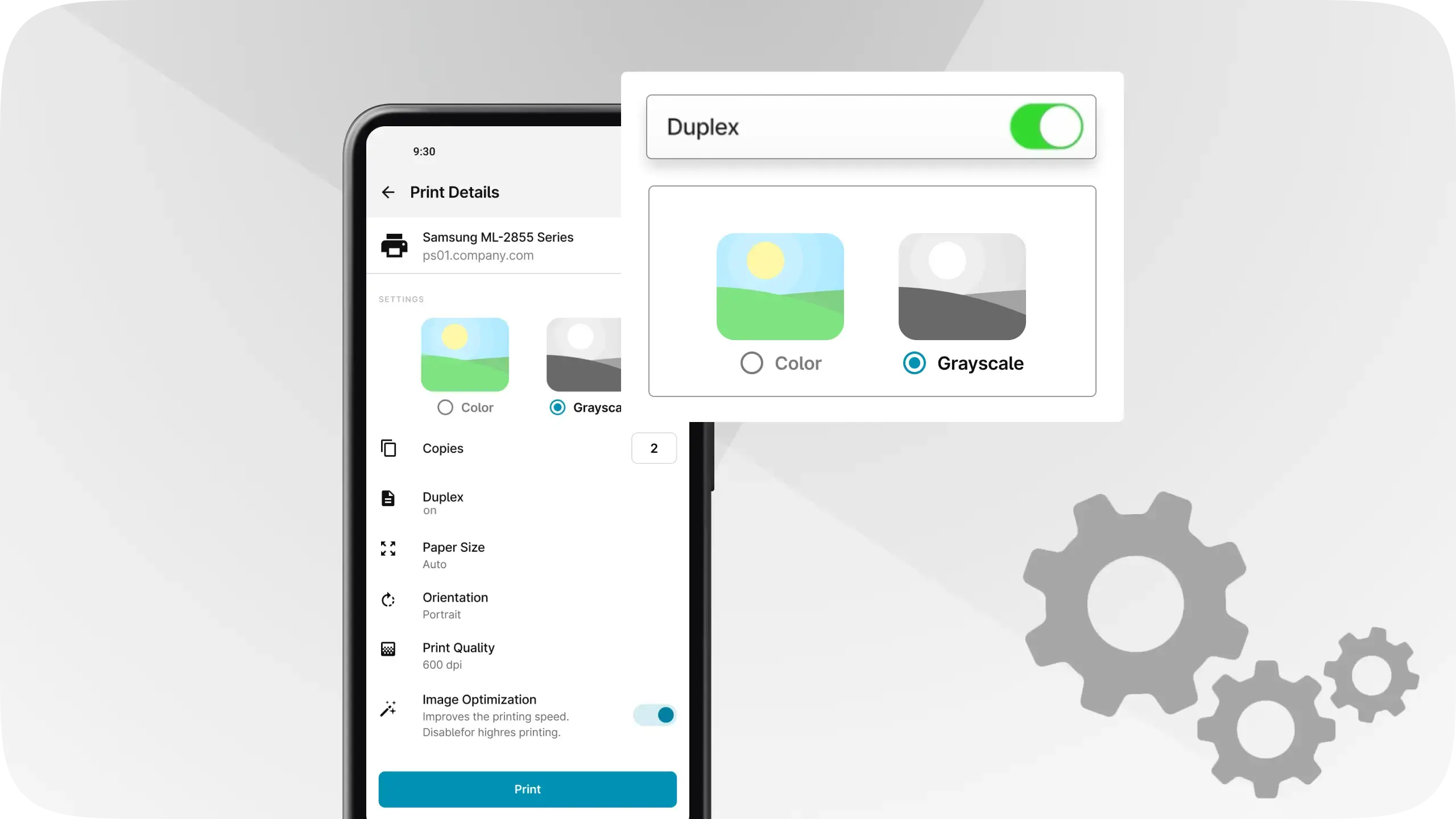
- Choose whether users can print in full color or black-and-white only.
What is next for ezeep?
As a cloud-based software service, ezeep is constantly being updated. We are always enhancing our technology, packaging it into a valuable and easy-to-use product, and releasing it to users to provide an improved and supporting printing experience.
Want your organization to experience ezeep? Try ezeep free today.
Frequently Asked Questions
What are ezeep's new Printers & Settings Pages?
The new Printers & Settings Pages are where administrators manage printer connections and user access within ezeep. They provide a more straightforward way to share printers and customize printing permissions for different groups of people.
How do the new ezeep pages improve printer sharing?
The redesigned pages streamline the process for sharing printers to various user groups. This allows administrators to easily define who can use specific printers and under what conditions, such as color or black and white printing.
Can I set different printer permissions for different user groups in ezeep?
Yes, ezeep allows administrators to create different user groups and assign specific printer permissions to each. For instance, some groups can have unlimited color printing while others are restricted to black and white to manage costs.
How does ezeep help control printing costs?
ezeep enables cost control by allowing administrators to set specific printing restrictions for user groups. For example, you can limit certain groups to black and white printing or require an access code for printing to reduce unnecessary paper and ink usage.
What kind of feedback led to the new ezeep page design?
User feedback indicated that the previous page design was too complicated and unclear. The new design addresses this by offering a more intuitive and user-friendly experience for managing printers and settings.
- March 2026 (3)
- February 2026 (2)
- January 2026 (2)
- December 2025 (2)
- November 2025 (5)
- October 2025 (6)
- September 2025 (1)
- August 2025 (4)
- July 2025 (1)
- June 2025 (3)
- May 2025 (1)
- April 2025 (5)
- March 2025 (6)
- February 2025 (6)
- January 2025 (3)
- December 2024 (5)
- November 2024 (4)
- October 2024 (7)
- September 2024 (2)
- August 2024 (2)
- July 2024 (5)
- May 2024 (4)
- March 2024 (1)
- February 2024 (3)
- January 2024 (1)
- December 2023 (1)
- November 2023 (3)
- October 2023 (3)
- September 2023 (3)
- August 2023 (1)
- July 2023 (3)
- June 2023 (2)
- May 2023 (1)
- April 2023 (5)
- March 2023 (7)
- February 2023 (4)
- January 2023 (2)
- December 2022 (3)
- November 2022 (2)
- October 2022 (5)
- September 2022 (6)
- August 2022 (2)
- July 2022 (4)
- June 2022 (5)
- May 2022 (2)
- April 2022 (4)
- March 2022 (4)
- February 2022 (2)
- January 2022 (1)
- October 2021 (1)
- July 2021 (5)
- June 2021 (4)
- May 2021 (3)
- April 2021 (1)
- March 2021 (4)
- February 2021 (1)
- December 2020 (1)
- November 2020 (1)
- October 2020 (1)
- September 2020 (1)
- June 2020 (1)
- April 2020 (4)
- March 2020 (3)
- February 2020 (3)
- January 2020 (1)
- August 2019 (2)
- May 2019 (1)
- September 2018 (1)
- January 2018 (1)
- May 2017 (1)
- November 2016 (1)
- October 2016 (1)
- May 2016 (1)
- May 2014 (1)
- January 2014 (1)
- October 2013 (1)
- August 2013 (1)
- April 2013 (1)
You May Also Like
These Related Stories
Introducing Groups for User Management
Advanced Print Management Features via MDM Systems